

Search for "AI UGC tools" and you'll drown in the same list every time: talking avatars, scripted voiceovers, a digital creator reading your ad copy off a green screen. Useful tools — but they all skip the part where a UGC-style product video actually begins. Before any avatar talks and any caption flies in, you need something to show: the product, in a scene, that looks like a real person shot it. This guide walks the full pipeline for how to make a UGC-style product video from a product image with AI — no studio, no shoot day, no model booking — and treats the visual layer as the foundation everything else is built on.
If you're an e-commerce seller, a small-brand marketer, or a creator who wants the native, scroll-stopping feel of user-generated content without the production cost, this is the workflow to learn. We'll go from a single product photo to a ready-to-post clip, and be honest about which steps you can fully automate today versus which still need an outside tool.
What a "UGC-Style Product Video" Really Is — and Why It Outperforms Polished Ads
User-generated content (UGC) is media that looks like it came from a customer or an everyday creator, not a brand's agency. UGC-style video is the deliberate version of that: content a brand produces but designs to feel native — handheld energy, a real-ish setting, a face talking to camera, casual captions, trending audio. It is the opposite of the glossy, perfectly-lit hero ad.
The reason it works is twofold. Consumers trust peers more than they trust brands, so a clip that reads as "a person who actually uses this" lowers the sales-pitch guard. And social algorithms reward content that looks native to the feed, because native content keeps people watching instead of bouncing past an obvious ad. One AI UGC tool provider reports figures as high as 4x the click-through rate and roughly 50% lower cost-per-click for UGC-style creative versus traditional ads — treat that as a vendor benchmark rather than a law of nature, but the direction is consistent with what most performance marketers see: native-feeling content tends to convert cheaper.
The old problem was cost. A single UGC-style video used to mean hiring a creator, shipping product, waiting on turnaround, and paying per deliverable — then doing it all again to test a second angle. AI collapses that. You can generate the visuals, animate them, and layer on a creator-style voice in an afternoon, then spin out ten variations for the cost of compute. The bottleneck shifts from production budget to taste and iteration speed.
The Full Workflow: From Product Image to Ready-to-Post Video
Here is the whole pipeline at a glance. Most "AI UGC" articles start at step 3 and pretend the visuals appear by magic. They don't — and the quality of steps 1 and 2 quietly determines how good everything after them can be.
| Step | What you do | Tool class |
|---|---|---|
| 1. Source visuals | Turn your product photo into clean studio shots and AI lifestyle scenes | AI image studio (live on Oxava) |
| 2. Motion clips | Animate the best stills into 6–15s vertical clips | Image-to-video models — Kling v3 & Seedance 2.0 (live on Oxava) |
| 3. UGC layer | Add an avatar/voiceover, hook, and captions | Avatar / voice tools |
| 4. Polish | Trending audio, burned-in captions, pacing | Video editor |
| 5. Export | Cut per-platform versions and ship variants | Editor / scheduler |
The key mindset: you are not editing one video, you are running a small factory. Each step feeds the next, and a weak input early on can't be rescued late. A blurry or distorted source frame becomes a worse motion clip, which no amount of trending audio will save. So we invest the most attention up front.
Step 1 in Depth: Generating the Right Source Visuals
This is the step the listicles skip, and it's the one that decides everything. Image-to-video models animate what you give them — they don't invent quality that isn't in the first frame. Feed them a sharp, well-composed, on-brand still and you get a clean clip. Feed them a flat catalog cutout on a gray background and the motion will look exactly that lifeless.
So before you think about animation at all, generate a small set of strong source visuals. The good news is you don't need a photographer. With an AI image studio you upload your actual product photo and generate variations around it:
- Clean studio / white background — the dependable baseline for a product reveal beat. (If your raw photo has a messy background, swap it cleanly first; see our guide to AI background removal and replacement.)
- Lifestyle scenes — the product on a marble counter, in morning kitchen light, on a desk, held in a hand. This is the UGC bread-and-butter, because it reads as "someone's real life," not a catalog. We go deep on this in our walkthrough of AI lifestyle images for an e-commerce catalog.
- On-model / in-use — the product being worn or used, which gives the eventual clip a human anchor.
- Before / after — especially strong for skincare, cleaning, organization, and any "transformation" pitch, because the contrast is the hook.
Which image types animate best? As a rule, scenes with depth and a clear subject (a hand reaching for the product, light falling across a surface) give motion models something to work with — a gentle push-in or parallax feels natural. Dead-flat, perfectly symmetrical product cutouts tend to animate stiffly. So if you know a still is destined for video, compose it with a little room for the camera to move. For more on building a consistent product look that survives this whole pipeline, our AI product photography walkthrough covers the fundamentals.
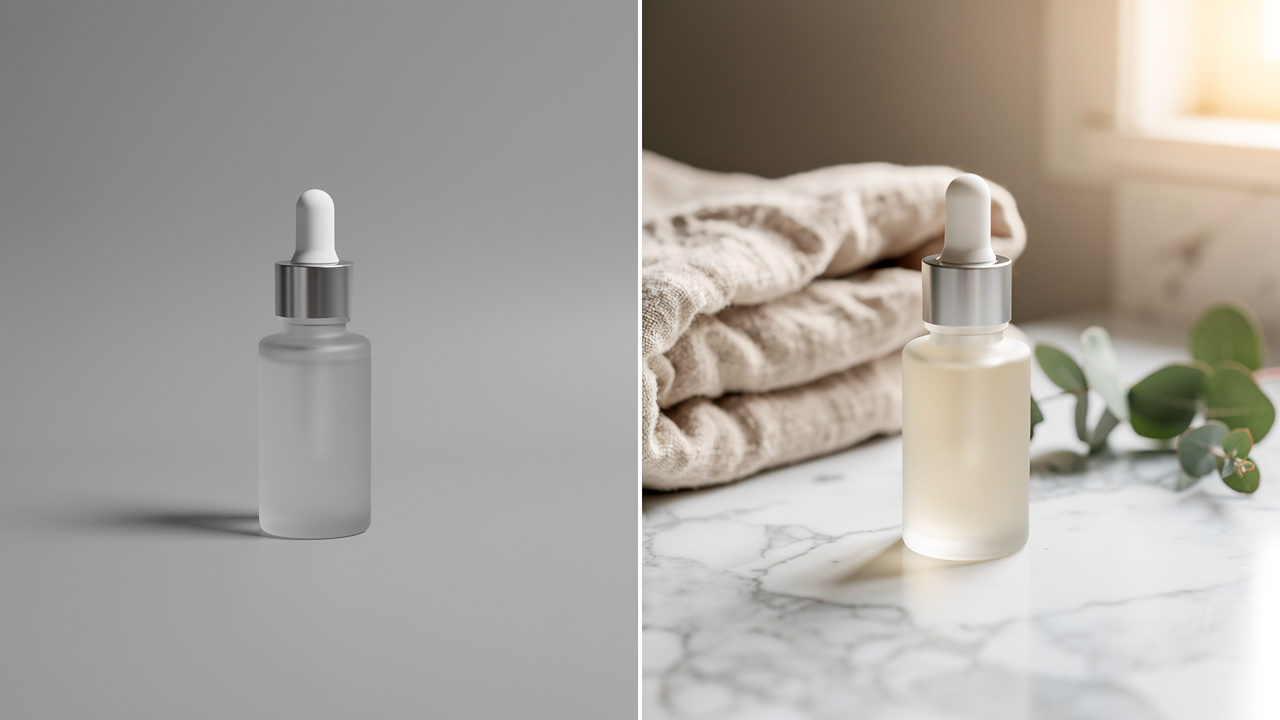
This is exactly where Oxava fits. The image studio is live today: upload your product photo, and generate clean studio shots and lifestyle scenes in minutes, then feed the best ones straight into your motion pipeline. You're not starting from a blank prompt — you start from your real product and direct the scene around it.
Start with your product image — open the Oxava studio and generate the source visuals your UGC video will be built on.
Turning AI Images Into Short Clips: Image-to-Video Best Practices
Once you have your stills, you animate the strongest ones with an image-to-video (i2v) model. The good news: this step is live on Oxava too. The studio includes Kling v3 (Standard and Pro) and Seedance 2.0, so you can take a still you just generated, send it to video, and turn it into a clip without leaving the app. Here's how to do it well, whichever model you reach for.
- Keep clips short. 6–15 seconds per beat is plenty. UGC pacing is fast; you'll stitch several short clips rather than one long take.
- Shoot vertical first. 9:16 is the native frame for TikTok, Reels, and Shorts. Compose and animate for vertical, then crop down for other placements — not the reverse.
- Direct the motion, lightly. A subtle push-in, a slow parallax, a hand entering frame — small, believable movement. Over-asking for dramatic camera moves is what produces warping and melting artifacts.
- Respect the first-frame rule. The model holds onto the opening frame and drifts from there, so your strongest, cleanest still should be the start frame. Distortion compounds over time; shorter clips simply have less room to fall apart.
- Avoid distortion traps. Logos, text on packaging, and hands are where i2v models break down. Keep those elements stable, minimize their movement, and cut before any warping creeps in.
Which i2v model should you use? Oxava gives you two strong families built in: Kling v3 — cinematic, smooth motion, native audio, with Standard and Pro tiers and multi-shot support — and Seedance 2.0, which delivers fluid movement with synced audio at a fast, economical default. Kling's Pro tier suits polished, multi-beat product stories; Seedance is a great everyday workhorse. For a wider view of how the field compares on quality, motion, and cost, see our text-to-video AI model comparison, and our hands-on review of Grok Imagine Video 1.5 for creators looks at one fast-moving entrant in detail.
Prompting a video model is a different craft from prompting an image model — motion, camera language, and timing all matter. If you want to get clips that look directed rather than random, work through our guide to prompting AI video generators, which covers the cinematic vocabulary that separates a usable clip from a glitchy one.
Animate your product image — open the Oxava studio and turn the still you just generated into a clip with Kling v3 or Seedance 2.0.
Adding the UGC Layer: Avatars, Voiceover, Captions, and Hooks
Now you have motion clips of your product. The UGC layer is what makes them feel like a person made them. The avatar and voiceover tools themselves are out of scope here — there are many (HeyGen, Creatify, Arcads and others) — but the selection criteria matter more than the brand:
- Naturalness of voice and lip-sync over feature count. A robotic delivery breaks the "real person" illusion instantly.
- Commercial usage rights that clearly cover paid ads, not just organic posts.
- Output format and resolution that match vertical social specs.
- Iteration speed — you'll generate many variants, so per-render friction adds up.
Whatever you bolt on, three things make or break UGC performance:
The first three seconds. This is the entire game. People decide to keep watching almost immediately, so lead with a hook, not a logo. Reliable formulas:
- Problem → solution: "I could never get my [X] to [result] until…"
- Before / after: open on the unsatisfying state, cut to the transformation.
- Number / claim hook: "This $14 thing replaced my entire…"
Burned-in captions are non-negotiable. A large share of social video is watched muted. If your message lives only in the audio, it doesn't land. Hardcode bold, readable captions so the video works on silent autoplay.
Sound is a signal, not decoration. Trending audio gets distribution; the wrong track makes a native clip feel like an ad again. Match the music to the platform's current sound culture, and keep the voiceover clean and present in the mix.
Frequently Asked Questions
Can viewers tell it's AI and not a real creator? Increasingly less so — but it depends on your weakest link. The giveaways are usually distorted hands, warping logos, robotic voice, or clips held a beat too long. Keep clips short, start from a clean source frame, and pick a natural-sounding voice, and most viewers in a fast feed won't stop to analyze it. The point isn't to deceive; it's to match the native, casual texture of the platform.
Do I have the right to use AI-generated product videos commercially? For the images, that depends on the studio and model you used — Oxava's image studio is built for commercial product work. For the avatar and voiceover layer, read each tool's license carefully: some allow organic posts but restrict paid ads, or limit how the AI presenter can be used. When in doubt, confirm commercial and paid-media rights before you run spend behind a video.
Which platform should I test first? Start where vertical, native UGC performs best — typically TikTok, Instagram Reels, or YouTube Shorts. Pick the one where your audience already scrolls, ship a few variants, and let the data tell you where the format clicks before you expand. One platform done well beats five done thinly.
How many variants should I test? Treat it like ad testing, not filmmaking. Because AI makes variations nearly free, produce several — change the hook, the opening scene, the voice, the caption — and let performance pick the winner rather than your gut. A common starting point is three to five variants per concept, then iterate on whatever pulls ahead.
The Takeaway
UGC-style product video used to be gated by production budget. AI removes that gate — but only if you start in the right place. The avatars and voiceovers everyone writes about are the last layer, not the first. The foundation is the visual: a sharp, on-brand, lifestyle-feeling image of your actual product, because every step downstream inherits its quality.
That's the part you can do right now — and the next one too. Upload your product photo, generate the studio and lifestyle scenes your video will be built from, then animate the best of them with Kling v3 or Seedance 2.0 in the same studio. You've done the work most "AI UGC" guides skip entirely, on a foundation that actually holds up. Start with your product image in the Oxava studio and build your UGC pipeline from the first frame to the finished clip.
Egemen Küpçü
Egemen Küpçü is the founder of Oxava, with 10+ years of hands-on experience in 3D and visual production. He writes about the craft of generating product, brand and campaign visuals with AI.
Related Articles
ALL POSTS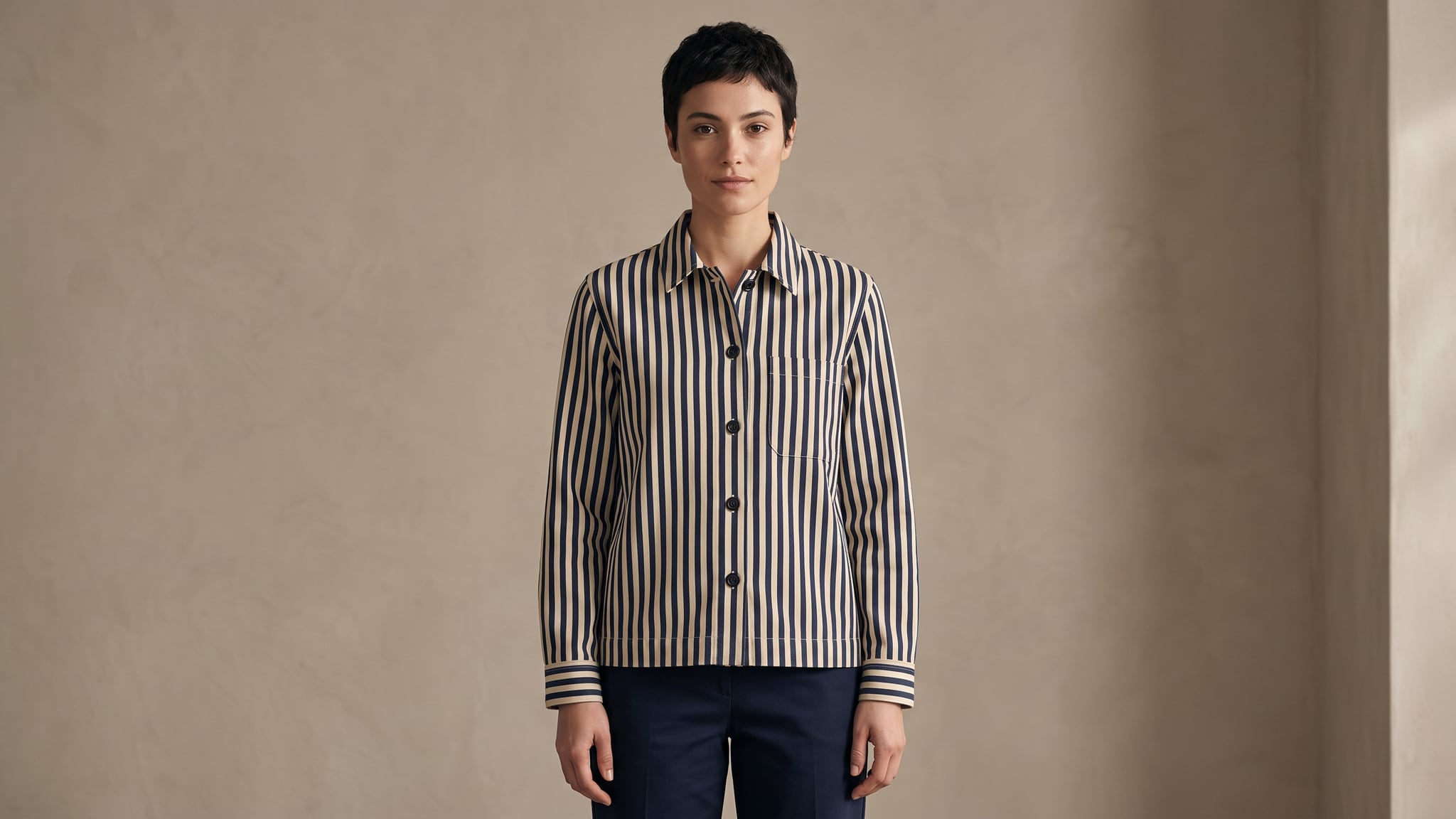
Subscribe to our newsletter
Be the first to hear about new techniques, model updates and ideas on AI generation.