

Video is the one place where a bad AI generation genuinely costs you something. A missed image is a handful of credits and ten seconds of your attention. A missed ten-second video is a real charge against your balance — and almost nobody lands the prompt on the first try. Three or four attempts to get one camera move right is normal, and that arithmetic is what makes people ration their experiments instead of running them.
That's the problem FLUX 3 Video is built around, which is why this guide starts with how to use FLUX 3 video Draft mode before anything else. Black Forest Labs shipped a fast, cheap preview variant alongside the full-quality model specifically so you can burn your bad ideas at a fraction of the cost and pay frontier rates only for the take you already know works. Both are live in the Oxava studio as two separate model cards. Here's the practical tour: where to find them, what each costs in credits, what the four modes are for, prompts you can paste today, and the limits worth knowing before you build a process on top of it.
What FLUX 3 Video Is, and Why It's in Oxava Now
FLUX 3 Video is Black Forest Labs' video generation model. If you know the FLUX name from image generation, reset that association: this one outputs video, and it's a different line from the FLUX image models (there's a full FAQ entry on that confusion below, because it comes up constantly).
Black Forest Labs detailed the model on its own blog on August 4, 2026, and The Decoder reported general availability the following day. Three things make it interesting for creators rather than just for benchmark-watchers.
Clips up to 20 seconds. Duration runs from 5 to 20 seconds, defaulting to 5. For context inside Oxava, that ceiling stands out: 20 seconds is the longest single generation in our entire video catalog — every other model tops out at 15 seconds or less. A twenty-second continuous take is a different kind of asset. It's long enough to carry a full product beat or a short narrative without stitching three generations together.
Synchronized audio at no extra cost. The model generates sound with the picture, and Oxava adds no audio surcharge — the toggle is on by default and marked free in the interface. Several sound-capable video models charge a higher per-second rate when you switch audio on. This one doesn't — describe the soundscape you want instead of treating audio as an upsell to avoid.
Four modes in one model — text to video, image to video, first-and-last-frame, and extending an existing video — all covered below.
Now the honest framing on the competitive claims. Black Forest Labs published Elo comparisons placing FLUX 3 Video ahead of Seedance 2.0, Gemini Omni Flash, and Minimax H3 — but those are the lab's own benchmarks, not independent evaluation, and they read as a vendor self-report. (Grok Imagine Video 1.5, another prominent 2026 launch, wasn't part of that comparison at all — see our review if you're weighing it too.) There's also a critical take from remio.ai noting that the 20-second capability hadn't been independently verified at the time of writing. Neither is a reason to skip the model; both are a reason to adopt it the sensible way — test it on short clips with your own material before committing a twenty-second budget. Which is exactly what Draft mode is for.
Finding FLUX.3 and FLUX.3 Draft in the Oxava Studio
Both variants live in the same place. Here's the click path.
- Open the Oxava studio and switch to the Video tab.
- Open the model picker. Models are grouped by the lab that built them; scroll to the Black Forest Labs group.
- Pick your card. FLUX.3, badged New, is the full-quality model. FLUX.3 Draft, badged Draft, is the fast preview variant. They're separate cards on purpose — you switch deliberately rather than toggling a hidden quality setting.
- Choose your mode — text to video, image to video, first-and-last-frame, or extend. Both cards support all four.
- Write your prompt. In image-to-video it's required, not optional: the still says what things look like, the prompt says what happens next.
- Set duration on the slider: 5 to 20 seconds, defaulting to 5.
- Set resolution — on FLUX.3 only. The full-quality card offers 720p or 1080p (720p by default). On FLUX.3 Draft there's no resolution control — the selector doesn't appear, because Draft output is fixed at 720p.
- Pick an aspect ratio: 16:9, 9:16, 1:1, 4:3, 3:4, 21:9, or 2:1. Choose before you generate rather than cropping after — if you're producing for Reels, TikTok, or Shorts, our vertical video format guide explains why 9:16 needs to be composed for, not cropped into.
- Leave audio on. It costs nothing extra, and a silent clip is strictly less useful than one with a soundbed you can mute later.
- Watch the credit cost. The panel shows the live cost of your current settings and updates as you change duration, resolution, and mode — so you always know what you're about to spend before you press generate.
That last point matters more than it sounds, because the workflow below is built on watching that number move.
How to Use FLUX 3 Video Draft Mode: The Draft → Full Quality Loop
This isn't an Oxava invention: the draft-then-refine loop is Black Forest Labs' own recommended way to use the model. The lab shipped Draft as a cheap exploration pass precisely so you'd iterate there and spend frontier rates only on the final render. We built the studio around the same idea, with two cards so the switch is one click.
- Draft at 5 seconds first. Even if the final clip needs 20, start short. Five seconds shows whether the model understood the subject, the camera move, and the energy of the scene.
- Iterate on the prompt, not the settings. Sharpen the language: name the camera move, the lighting, the pacing. Two or three Draft passes usually converge on wording that behaves.
- Stretch the duration in Draft if you need length. A 20-second Draft still costs less than a 5-second full-quality run, so this is where you learn whether your idea sustains twenty seconds or runs out of story at eight.
- Switch to the FLUX.3 card and render for real — same prompt, same aspect ratio, same duration, now at 720p or 1080p.
The economics are the whole argument. Draft runs at 6 credits per second against 17 credits per second for full-quality 720p — a roughly one-to-three ratio. Put plainly: three failed Draft experiments cost about what one failed full-quality render costs. That changes behavior. You stop rationing attempts and start actually exploring, which is where the good shots come from.
| What you're generating | FLUX.3 Draft (720p, fixed) | FLUX.3 at 720p | FLUX.3 at 1080p |
|---|---|---|---|
| Per second — text, image, or first-and-last-frame | 6 credits | 17 credits | 29 credits |
| 5-second clip | 30 credits | 85 credits | 145 credits |
| 10-second clip | 60 credits | 170 credits | 290 credits |
| 20-second clip | 120 credits | 340 credits | 580 credits |
| Per second — extending a video | 12 credits | 41 credits | 53 credits |
Two things to read out of that. First, FLUX.3 Draft is the cheapest video generation in Oxava, full stop — 30 credits for five seconds comes in under the next cheapest options in the catalog (Seedance 2.0 Mini at 34 credits, Kling v3 Standard at 42 for a comparable clip). Second, extending a video is priced in its own tier, well above generating fresh footage in both variants. Extension is a deliberate choice, not a casual one.
One limit to know before you build on this loop, because it's the honest core of it: there is no seed control. You can't lock a number and reproduce a generation frame for frame. The clip you fall in love with in Draft will not come back identical in FLUX.3 — you'll get the same idea, executed again.
That sounds like it breaks the workflow. It doesn't, once you know what Draft actually validates. What carries over reliably is composition, camera movement, pacing, subject behavior, and your prompt language — whether the wording you wrote produces the shot you meant. What doesn't carry over is the exact frame, the precise micro-timing, or specific face and fabric detail. Draft is a rehearsal, not a storyboard you expect traced. If a particular look has to be nailed down before motion enters the picture, generate that hero still as an image first and use image-to-video: the still becomes the anchor the seed can't be.
Plan access, stated plainly: FLUX.3 Draft is open on every plan, Starter included — it's the cheapest video in the catalog and we didn't want it gated. Full-quality FLUX.3 requires Pro or above, the same tier as our other frontier video models. On Starter you can run the entire Draft exploration loop today, and the upgrade decision comes after you've seen what the model does with your material rather than before.
Open the studio, pick FLUX.3 Draft, and spend 30 credits finding out whether your idea works. That's the pitch — the cheapest honest answer to "will this shot land?" we can give you.
The Four Modes, and When Each Earns Its Credits
Both cards support all four, so you can rehearse any of them in Draft.
| Mode | What you give it | Best for | Watch out for |
|---|---|---|---|
| Text to video | A prompt only | Concepts, stylized scenes, ads with no existing assets | Everything is invented — vague subjects drift |
| Image to video | One still + a prompt | Animating a product shot or lifestyle photo you own | The still decides the look; fix it before animating |
| First and last frame | Start image, end image, prompt | Controlled reveals, transformations, before-and-after beats | The two frames must plausibly connect |
| Extend a video | An MP4 + a prompt | Continuing a take you already like | MP4, under 50 MB, under 15 seconds; priced well above fresh footage |
Image to video is where most commercial work actually starts: you already own the product photo and you want it to move. The advantage over text-to-video is control — the look is locked by the still, so motion is the only variable. Our image-to-video workflow guide covers preparing a still that animates cleanly, and for product shots specifically, turning product photos into videos walks the pipeline from catalog image to finished clip.
First and last frame is the underrated one. You supply both ends and the model builds the motion between them — the closest thing to directing a specific outcome this model offers. Reveals, transitions between two product states, before-and-after transformations: all far more reliable here than hoping a text prompt lands the ending you had in mind.
Extending a video continues a clip you already have. The source constraints are firm — MP4, under 50 MB, under 15 seconds — you choose how much time to add, and the result can run up to 20 seconds total. Given the pricing tier, extend a take you're already happy with rather than one you're trying to rescue. Extending a weak clip just buys more of a weak clip.
Copy-Paste Prompts to Start From
FLUX 3 Video rewards the same discipline every strong video model does: name the subject, the action, the camera, the light, the pacing — and because sound is generated in the same pass, the soundscape too. Vague mood words get vague motion. For the underlying craft rather than templates, our guide to prompting AI video generators is the foundation these four are built on. Run each in FLUX.3 Draft first.
1. Cinematic product ad (text to video)
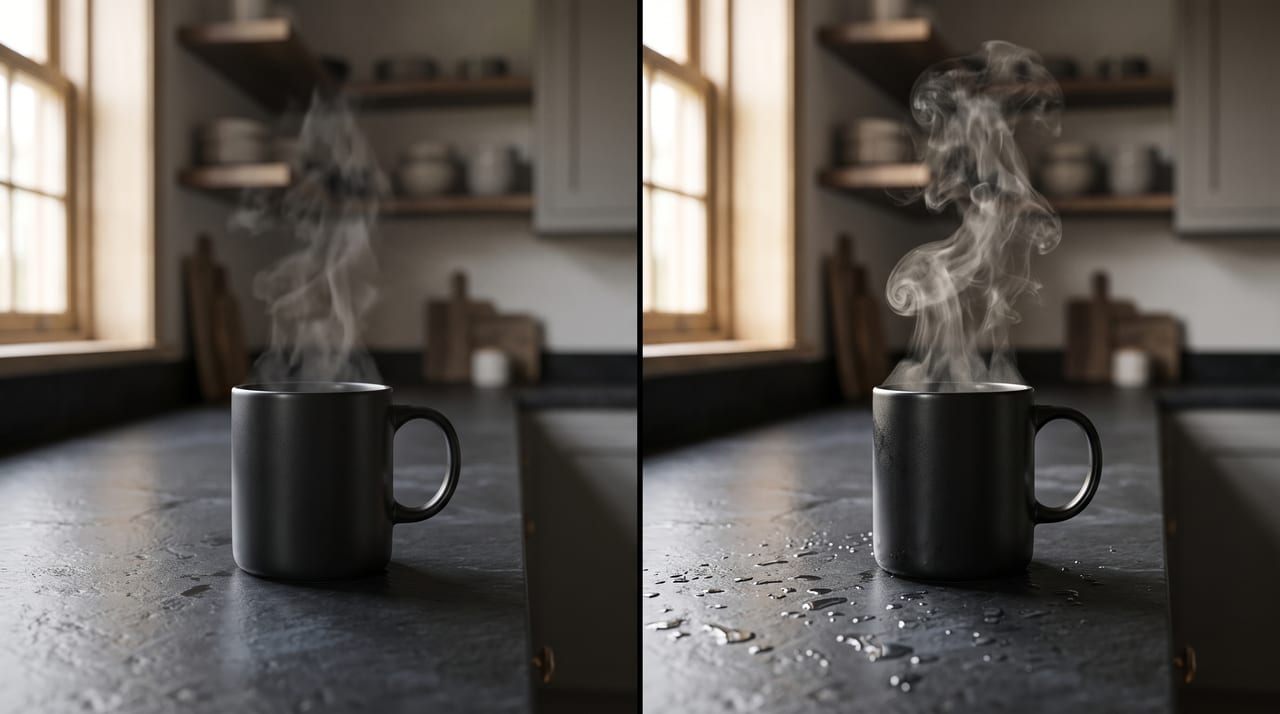
Cinematic product commercial. A matte black ceramic coffee mug sits on a wet slate countertop in a dim modern kitchen. The camera starts wide at counter height and pushes in slowly to a tight three-quarter view across the full clip. Warm key light from a window at frame left, cool practical light behind, steam rising steadily. Shallow depth of field, subtle handheld micro-movement, one continuous take, no cuts. Ambient sound: low room tone, a soft ceramic settle, distant morning street. Photoreal, editorial commercial grade.
One camera instruction, one lighting setup, one continuous move — and an explicit "no cuts", which matters for reasons in the limits section below.
2. Animating a lifestyle photo (image to video)
Animate this photograph without changing its composition, wardrobe, or color grade. Keep the subject and background exactly as they are. The woman lifts the glass slowly toward the camera and smiles at the end of the movement; her hair shifts slightly with the motion. The camera holds still with a very gentle push-in. Leaves outside the window move a little in a light breeze. Natural pacing, no scene change, no new objects entering frame. Ambient sound: quiet café interior, faint cutlery, no music.
The pattern is preserve, then move. Say what to hold before you say what to change, or the model will happily restyle your carefully chosen photograph while animating it.
3. Controlled product reveal (first and last frame)
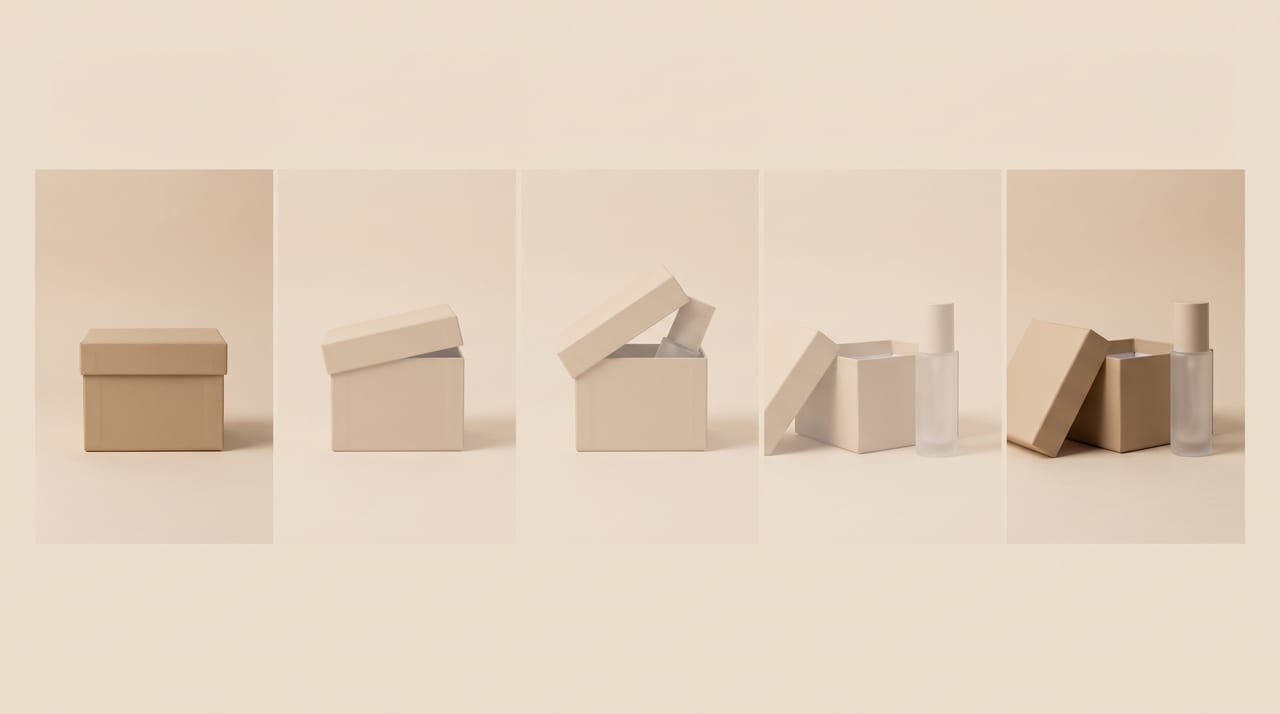
Start frame: the closed product box, centered, front-on, on a seamless sand-colored backdrop. End frame: the box open with the bottle standing upright beside it, same backdrop, same lighting. Between them: the lid lifts smoothly and rotates out of frame while the bottle rises into place, and the camera arcs fifteen degrees right. One continuous move, even pacing, consistent lighting throughout, no cuts. Ambient sound: a soft cardboard slide and one clean glass set-down.
Describe the transition, not the two frames — the model can already see those. Your prompt's job is the path between them.
4. Continuing a shot (extend)
Continue the existing shot with no cut. Keep the same character, wardrobe, lighting, location, and color grade. She finishes turning toward the window, then walks two steps out of frame left while the camera stays locked off. Preserve the grain and tone of the source footage. Ambient sound continues unchanged: room tone with faint traffic outside.
Continuity language — "same", "preserve", "continues unchanged" — is most of the prompt in extend mode. You're asking for more of something that exists, not for a new idea.
Honest Limits Worth Knowing
No seed control. Covered above, but it belongs on the list: no generation can be reproduced exactly, in Draft or full quality. Plan for "same idea, new take" rather than "same frame, sharper".
One prompt produces one shot. In Oxava's FLUX.3 flow, a generation is a single continuous take — there's no multi-shot sequencing where you script shot one, shot two, and shot three inside one run. That's how the model is wired into our studio, not a verdict on the model. If your concept genuinely needs several cuts in one generation, Kling v3 has a multi-shot switch and is the better routing choice for that job. For FLUX.3, plan one shot per generation and assemble in your editor.
Draft is locked to 720p. There's no high-resolution draft. Judge composition, motion, and pacing there; judge final sharpness only in the full-quality render. Don't reject an idea in Draft because it looks soft — softness is the point of the tier.
Extension has real source constraints: MP4, under 50 MB, under 15 seconds. A long or heavy file won't be accepted, so trim and compress before uploading.
Treat the 20-second ceiling as something to earn, not assume. It's the longest duration in our catalog and genuinely useful — but as the critical coverage noted, the long-form claim hadn't been independently stress-tested at launch, and the competitive rankings come from the lab's own testing. Prove the prompt at 5 seconds in Draft first, then commit to 20 only once it's full quality's turn.
To see where FLUX 3 Video sits against the rest of the field before you pick a default, our text-to-video model comparison lays the current generation out side by side.
Frequently Asked Questions
What's the difference between FLUX.3 and FLUX.3 Draft?
They're the same model family in two quality tiers, shown as two separate cards in the Oxava studio. FLUX.3 Draft is the fast, cheap preview variant: fixed at 720p, 6 credits per second. FLUX.3 is the full-quality version: selectable 720p or 1080p, 17 or 29 credits per second. Both support all four modes and the same 5-to-20-second range. Draft is for exploring; FLUX.3 is for delivering.
Will the clip I like in Draft come out identical in full quality?
No — worth being clear-eyed about. FLUX 3 Video has no seed control, so no generation can be reproduced frame for frame, including across the two tiers. Draft reliably validates your composition, camera movement, pacing, subject behavior, and prompt wording; it can't promise the same frames back at higher fidelity. Treat Draft as a rehearsal that proves the idea, and expect the full-quality run to be a fresh take of it.
Is the audio really free?
Yes. FLUX.3 and FLUX.3 Draft generate synchronized audio with the video, and Oxava adds no surcharge — the credit rates above are the full price with sound on. The toggle is enabled by default and marked free in the interface. Since it costs nothing, describe the soundscape you want in your prompt rather than leaving it to chance; you can always mute the track in your editor.
How long a video can I extend, and what are the limits?
Your source must be an MP4, under 50 MB, and under 15 seconds. You choose how many seconds to add, and the finished result can run up to 20 seconds total. Extension sits in its own pricing tier — 41 credits per second at 720p, 53 at 1080p, or 12 per second in Draft — meaningfully above generating fresh footage. Rehearse the continuation in Draft before committing to a full-quality extension.
Is FLUX.3 the same thing as FLUX.2 Pro in Oxava?
No, and it's the most common mix-up. FLUX.3 and FLUX.3 Draft are video models — they live in the Video tab and output clips. FLUX.2 Pro and FLUX schnell are image models, on the image side of the studio, and they output stills. Same lab, same brand name, completely different jobs. If it's a still image you need, our roundup of the best AI image generators of 2026 covers where the FLUX image models fit against the rest of the field.
The Bottom Line
FLUX 3 Video's most useful feature isn't the 20-second ceiling or the free synchronized audio, welcome as both are. It's that Black Forest Labs shipped a cheap way to be wrong. Draft mode turns video generation from a series of expensive bets into a real iteration loop — three exploratory passes for roughly the cost of one full-quality render, with the same four modes and the same duration range, so nothing about your rehearsal is a special case.
That's how to use FLUX 3 video Draft mode well: prove the prompt in Draft at 5 seconds, stretch it in Draft if you need length, then switch to the FLUX.3 card and render the take you already know works. Go in knowing the honest limits — no seed, so expect a new take rather than a copy; one shot per generation in this flow; Draft locked to 720p — and the workflow holds up.
If you're bringing existing assets, start from an image rather than a blank prompt: the image-to-video workflow guide covers preparing a still that animates cleanly, and it pairs naturally with everything above.
FLUX.3 Draft is open on every Oxava plan, including Starter, at 30 credits for a five-second clip. Open the studio, pick the Black Forest Labs group, and find out what your idea looks like in motion — then pay full quality only for the one that deserves it.
Egemen Küpçü
Egemen Küpçü is the founder of Oxava, with 10+ years of hands-on experience in 3D and visual production. He writes about the craft of generating product, brand and campaign visuals with AI.
Related Articles
ALL POSTS


Subscribe to our newsletter
Be the first to hear about new techniques, model updates and ideas on AI generation.