
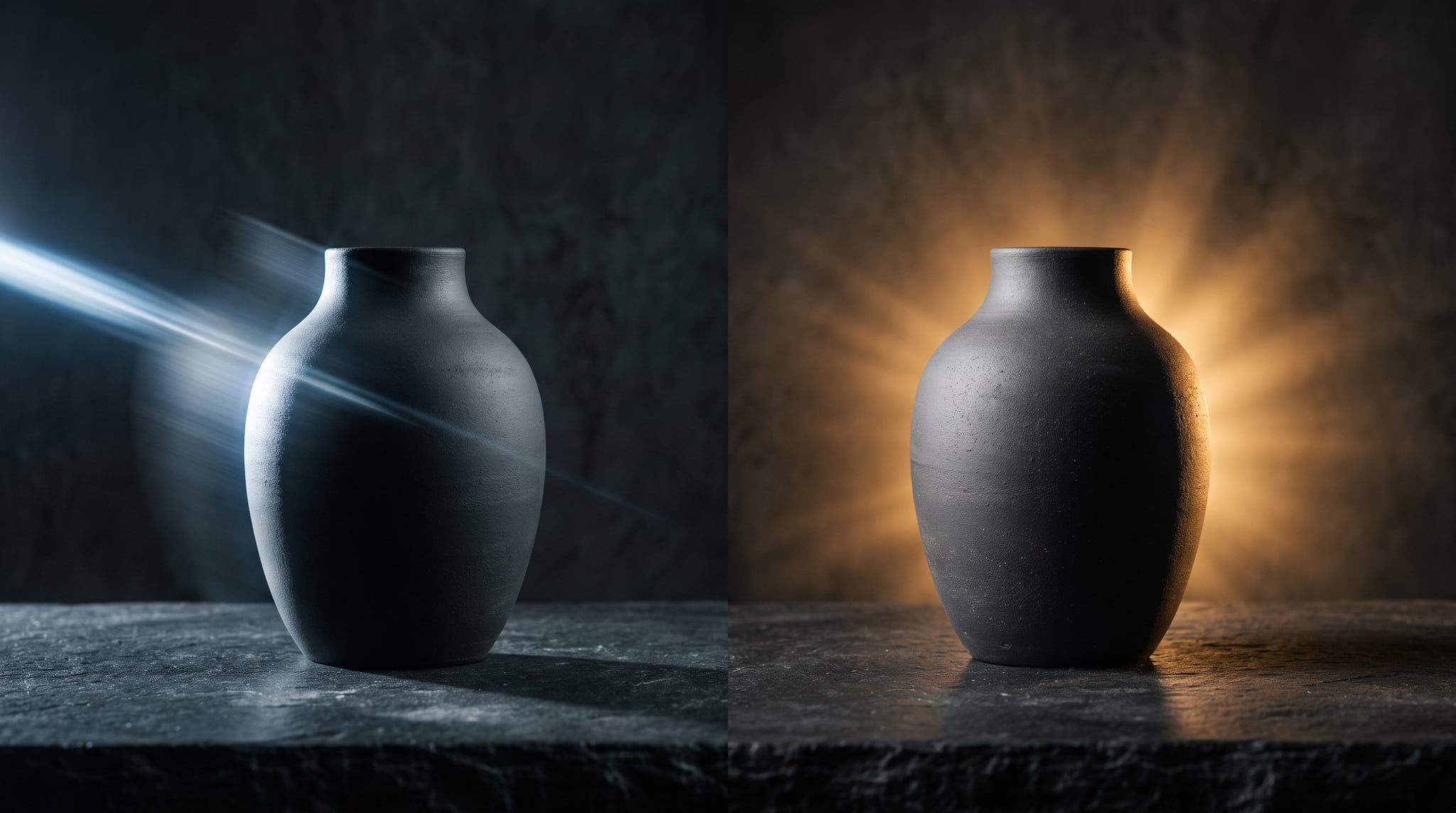
OpenAI shipped GPT Image 2.5 on 8 September 2026, and it arrived with an unusual
shape: not one new model, but two released side by side. The API names them
gpt-image-2.5-flare and gpt-image-2.5-sunburst — those are OpenAI's own labels,
not a platform invention. That's the GPT Image 2.5 flare vs sunburst split this guide
walks through, and together they succeed GPT Image 2, the model that spent most
of 2026 as the reliable all-rounder people opened when they didn't want to think about which
tool to open.
Both engines are now live in the Oxava studio as two separate cards, at exactly the same credit price, with five quality tiers running from Low to Maximum. Which raises the two questions launch coverage skipped entirely: which engine do you reach for on a normal Tuesday, and which of those five tiers is actually worth paying for?
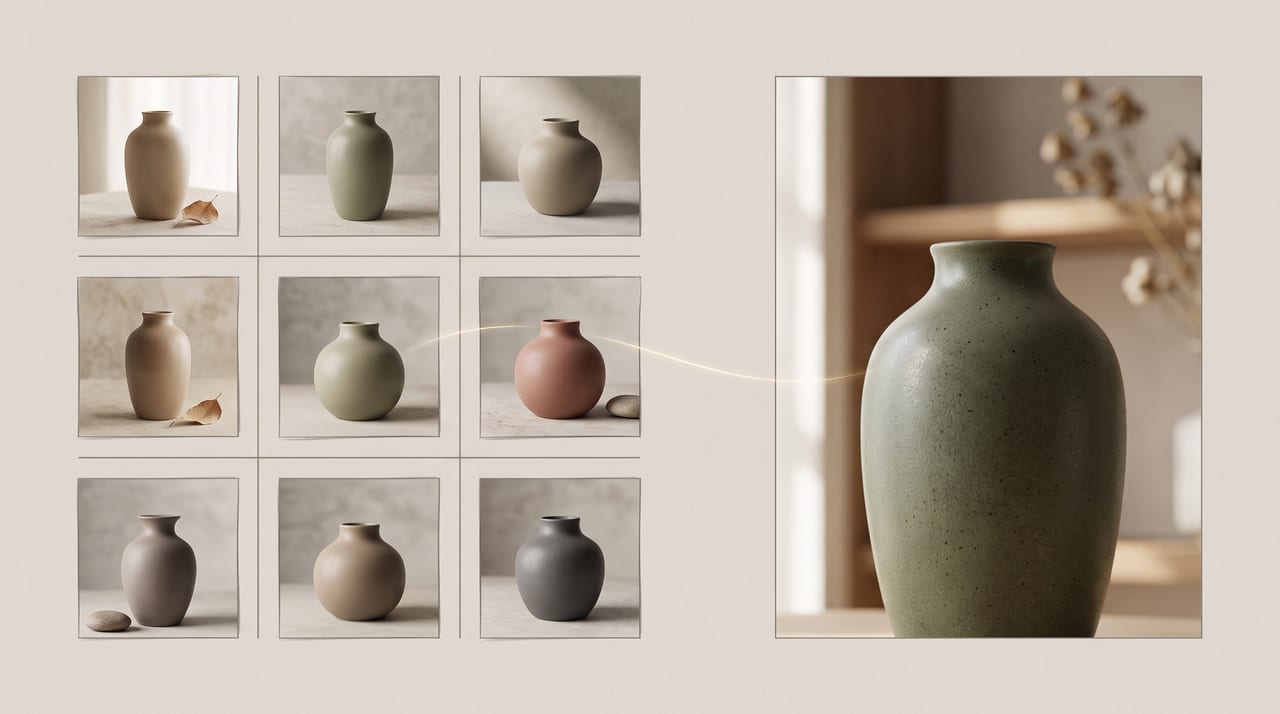
This guide is the GPT Image 2.5 flare vs sunburst decision you actually have to make, plus the tier question underneath it. Here's the short version, which the rest of the article backs up with numbers: run Flare for almost everything, keep Sunburst for the final pass, and treat the five tiers as three real settings plus two specialists — Medium to explore, High to deliver, and Very high or Maximum only when a job genuinely earns them.
What GPT Image 2.5 Actually Changed vs GPT Image 2
OpenAI's launch announcement frames 2.5 as a quality-and-speed release rather than a rebuild, and the independent coverage from 9to5Mac reads it the same way. Four changes matter if you generate images for work.
Two models instead of one. This is the structural change. Previous generations gave you a single model with quality settings on top; 2.5 splits the job across a fast engine and a precision engine that share a family but not a temperament. You now make an engine choice before you make a settings choice.
Flare is built around latency. OpenAI's claim is that Flare delivers GPT Image 2-class quality with up to 50% lower latency. That's a vendor number and worth treating as one — "up to" is doing work in that sentence, and your mileage depends on resolution, tier and queue. But the direction is unambiguous and it matches how the card behaves in practice: Flare is the one you can iterate on without losing your train of thought.
Sharper fine detail and more natural light. Both engines render finer texture than GPT Image 2 and handle light in a way that reads less like a render and more like a photograph — softer falloff, more believable reflections, fewer of the plasticky highlights that used to give a generated product shot away at full size.
Better consistency across multi-turn edits and reference subjects. This is the change that shows up most in real workflows. When you edit an image repeatedly — change the background, then the copy, then the crop — earlier models drifted, quietly restyling the things you didn't ask about. 2.5 holds the untouched parts steadier, and it's more faithful to the subject in a reference image you feed it.
There's also a batch of consumer-side features in ChatGPT itself — sketch input, comment-style editing, templates and version history. They're genuinely nice, and they're not what this guide is about: those live in OpenAI's own app interface, not in the model API that studios like ours call. What you get here is the model.
GPT Image 2.5 Flare vs Sunburst: Two Engines, One Price
The unusual part of this launch, from a pricing standpoint, is that the two engines cost the same in Oxava. Identical credit table, tier for tier, resolution for resolution. So the choice isn't a budget decision at all — it's purely a decision about speed versus patience.
| GPT Image 2.5 (Flare) | GPT Image 2.5 Sunburst | |
|---|---|---|
| Role | Fast default engine | Precision engine |
| Speed | Quick — built for iteration | Noticeably slower |
| Best at | Volume, exploration, everyday output | Fine detail, texture, reference fidelity |
| Multi-turn editing | Good | Most faithful of the two |
| Credit cost | Same as Sunburst | Same as Flare |
| Quality tiers | All five | All five |
| Reference images | Up to 16 | Up to 16 |
When Flare Is the Right Pick
Flare is the default card in the studio, and for most people it should stay that way. Reach for it when the job is:
- Everyday production work — social posts, blog imagery, listing shots, email headers.
- Exploration. When you don't yet know what the image should be, you need ten cheap looks, not one slow perfect one.
- Variation runs. Same product, six backgrounds. Same layout, four palettes.
- Product mockups and concept boards where the picture has to communicate an idea rather than survive being printed at A1.
- Anything on a deadline. A model you're waiting on is a model you stop using.
The honest framing: Flare isn't the compromise option. It's GPT Image 2-class output that comes back fast enough to iterate on, which for most working days is a bigger quality improvement than any single-image gain.
When Sunburst Earns the Wait
Sunburst is the one to pick when the output is the deliverable rather than a step toward it. It's noticeably slower — plan for that, don't be surprised by it — and it pays that time back in three specific places:
- Final campaign and print pieces, where fine texture and small detail get scrutinised at full size.
- Multi-turn editing chains. If you're on your fourth revision of the same image, Sunburst is the more faithful engine at holding everything you already approved.
- Reference-heavy work. When the whole point is that the product, face or garment in the output matches the one you uploaded, Sunburst is the better bet.
- Intricate material work — fabric weave, brushed metal, condensation, printed paper stock. The things that look fine in a thumbnail and fall apart on a billboard.
What Sunburst is not: a separate quality tier, a different price, or a guarantee. It's the same family tuned for precision over pace.
The Workflow: Explore in Flare, Finish in Sunburst
This is the pattern worth building a habit around, and it's the practical reason the two cards sitting side by side at one price is a genuinely good arrangement.
- Explore in Flare at Medium. Run your prompt several times, change one variable at a time, and find the composition, palette and framing you actually want. This stage is about decisions, not pixels.
- Lock the brief. Once a candidate wins, freeze the prompt language and gather the reference images that go with it.
- Finish in Sunburst at High. Open the GPT Image 2.5 Sunburst card, paste the same prompt, attach the same references, step the tier up, and let it take its time.
The move from card to card is a click in the model picker — same prompt box, same reference panel, same settings. One caveat carries the whole workflow: neither engine exposes a seed, so the Sunburst run is a fresh take on a proven brief, not the same image at higher fidelity. What survives the handoff is the idea — composition, subject, light, and your prompt wording. If a specific look absolutely must be preserved, generate the winner in Flare and then feed it back in as a reference image, which anchors the finish on something real instead of hoping.
The Five Quality Tiers, and the Two or Three You'll Actually Use
Both cards expose the same Image quality control with five settings: Low, Medium, High, Very high, Maximum. GPT Image 2 gave you three. Going from three to five sounds like more control, and it is — but it also invites a very expensive habit, which is reaching for the top of a list because it's there.
Here's what each one is actually for.
Low — the draft tier. Composition tests, framing checks, "does this prompt even point in the right direction." Detail is soft and text will not survive. Use it to answer structural questions cheaply, not to judge quality.
Medium — your everyday default. This is where most work should live. Medium is good enough for social posts, blog imagery, internal decks and concept exploration, and it's cheap enough that running eight variations doesn't require a second thought. If you only ever use one tier, make it this one.
High — the delivery tier. Step up to High when the image is going to a client, a storefront, a paid placement or the top of a landing page. The jump from Medium to High is the one you can actually see: cleaner edges, better-resolved small elements, type that holds together.
Very high — the specialist. Worth it when an image carries dense small typography, a multi-element layout where several things have to stay legible at once, or fine detail that will be examined closely. Not worth it for a single-subject photo.
Maximum — the rare one. Reserve it for genuinely demanding jobs: print output, a poster with a lot of copy, a complex composite where every element has to hold. It's the most expensive setting on the card by a wide margin, and most weeks you won't need it once.
The rule that keeps this simple: explore at Medium, deliver at High. Only step past High when something in the brief specifically demands it — small text, many elements, or print. That's not us being cautious; it's the same guidance the model cards carry inside the studio.
What GPT Image 2.5 Costs in Oxava, in Credits
Both engines share one table — there is no Sunburst surcharge. Every price below is for a generation with no reference images; each reference image you attach adds 2 credits, and the Generate button updates live as you add them.
| Resolution | Low | Medium | High | Very high | Maximum |
|---|---|---|---|---|---|
| 1K | 2 | 3 | 7 | 11 | 23 |
| 2K | 3 | 4 | 12 | 21 | 44 |
| 4K | 3 | 6 | 19 | 33 | 73 |
Two things fall out of that table immediately.
Quality work got much cheaper. For comparison, here's what GPT Image 2 costs on the same three resolutions:
| Resolution | Low | Medium | High |
|---|---|---|---|
| 1K | 2 | 8 | 23 |
| 2K | 2 | 9 | 24 |
| 4K | 3 | 15 | 42 |
Medium at 1K went from 8 credits to 3, and Medium at 2K from 9 to 4. High at 1K went from 23 to 7, and High at 4K from 42 to 19 — for two and a half times the pixels. That saving is the single biggest practical change in this release for anyone generating at volume.
Exploration is cheap; the top tiers are where the money is. Low and Medium sit at 2–6 credits across every resolution, so wide exploration costs almost nothing whatever size you pick. The curve then climbs steeply — Maximum at 4K is 73 — because each quality step roughly follows the model's own token math: Medium is a quarter of High, Very high is about 1.8×, and Maximum is 4×. So explore at Low or Medium, and spend deliberately at the top — with one caveat about what "4K" means here, which is the next section.
About That "4K" Setting
The Resolution control offers 1K, 2K and 4K, and the honest version is worth stating plainly rather than letting the label imply something it doesn't.
1K generates on a 1024-pixel base and 2K on a 2048-pixel base. The 4K setting is capped by a total-area ceiling rather than a fixed long edge, so what you actually get depends on your aspect ratio: at 16:9 that's 3840×2160, and on a square canvas it's 2880×2880. Those are real, useful resolutions — a 3840×2160 landscape image is a genuine 4K frame. But a square "4K" output is 2880 on a side, not 4096, and you should size your layouts knowing that rather than discovering it in an export.
So when should you actually pick 4K? Since it costs the same as 2K, the answer is whenever you're keeping the image — print pieces, large-format banners, hero images you'll crop into, anything destined for a high-density display. The real trade-offs are file weight and render time, not credits. Stay at 1K while you're iterating; that's where the cost difference lives.
Step by Step: Using GPT Image 2.5 in Oxava
Here's the click path in the Oxava studio.
- Open the model picker and choose your engine. GPT Image 2.5 is the Flare card and the faster default; GPT Image 2.5 Sunburst sits next to it for precision work. GPT Image 2 is still there too — it hasn't been retired, and it remains open on Starter.
- Write your prompt. Concrete beats atmospheric. If you want a longer, more detailed brief without writing it yourself, the AI Enhance button expands a short prompt into a fuller one you can then edit by hand.
- Attach references if you need them. Use Add reference — JPG, PNG, up to 16 images in a single generation. Sixteen is a ceiling, not a target: three to five files doing distinct jobs (subject, detail, style) beats a dozen that argue with each other.
- Set Image quality. Medium to explore, High to deliver, as above.
- Set Resolution. 1K while iterating; 4K for anything you're keeping, since it's priced like 2K.
- Pick an Aspect ratio. 9:16, 2:3, 3:4, 1:1, 4:3, 3:2 and 16:9 are available — enough to cover vertical social, print portrait, square feed and widescreen without cropping after the fact.
- Set how many images to generate and run it. Batch generation is supported, which is the whole point of a cheap Medium tier.
Outputs come back as PNG, JPEG or WebP.
Two things will improve your results more than any setting on that panel. The first is prompt craft itself — our guide to writing image prompts covers the fundamentals that carry across every model on the platform, and they apply to 2.5 unchanged. The second is knowing how to edit rather than regenerate: 2.5's improved multi-turn consistency is only worth something if you write targeted instructions ("change the background, keep the product and text exactly as they are") instead of rewriting the whole prompt each round. Our image-to-image editing workflow guide walks through that discipline properly.
Copy-Paste Prompts to Start From
Adapt these — the brand and product names are invented on purpose, so swap in your own. Note the pattern in every one: the exact on-image text sits in quotation marks, and the layout is described structurally rather than vaguely.
1. Poster with a headline
A vertical event poster, clean modern editorial layout, front-on flat composition, soft even lighting. Headline in the top third reads "NORTHBOUND SESSIONS" in a bold condensed sans-serif. Subhead directly below reads "Three nights of live sound". Deep teal and warm amber palette, generous whitespace, high-contrast typography. Portrait.
2. Product mockup with a legible label
A front-on studio shot of a matte glass bottle on a pale stone surface, soft directional window light from the left, gentle shadow falloff. The label reads "AVELLIS" in a refined uppercase serif, with smaller text below reading "Cold-Pressed — 250ml". Shallow depth of field, muted neutral background, print-clean margins. Square.
3. Infographic / diagram
An editorial infographic on a light background, three labeled sections arranged left to right with clear vertical dividers. Section titles read "Collect", "Refine" and "Publish". Simple line-drawn icons above each title, thin connecting arrows between sections, muted two-color palette, disciplined grid, generous whitespace. Landscape.
4. App UI mockup
A clean mobile app interface mockup shown on a floating device frame against a soft gradient background. The screen header reads "Today's Plan". Below it, three list rows with short labels and small circular icons, a single accent-colored button at the bottom reading "Start". Minimal design-system aesthetic, soft shadows, generous padding. Portrait.
5. Multi-reference edit
Using the attached references: keep the product from the first image exactly as shown — shape, label, and finish unchanged. Place it in the setting from the second image, matching that scene's light direction and color temperature. Match the styling and grade of the third image. Do not change the label text, do not add other products, do not add on-screen text.
6. Turkish text with diacritics
A vertical retail campaign poster, flat front-on composition, even studio lighting. Large headline in the top third reads "İNDİRİM BAŞLADI" in Turkish, bold uppercase sans-serif with the dotted capital İ rendered exactly. Subhead below reads "Şık ve sade" in a lighter weight. A small line of body text at the bottom reads "Güneşli günler için". Warm cream and burnt orange palette, clean margins, high-contrast typography. Portrait.
Text, Logos and Turkish Characters
If there's one job where 2.5 justifies the upgrade on its own, it's images with words in them. In-studio use lines up with what OpenAI claims about sharper detail: headlines, subheads, product labels, badges and simple logotypes come back cleaner and better-integrated into the layout than they did a generation ago, and the improved reference fidelity means you can take an approved image and add type to it without the model quietly redrawing the thing underneath.
The prompt pattern that does most of the work is unglamorous: quote the literal string, and
name the language. A headline that reads "İNDİRİM BAŞLADI" in Turkish gives the model an
exact target. "A discount headline" invites it to invent copy — and inventing copy is where
garbled letterforms come from.
For Turkish specifically, the failure mode isn't usually the whole word — it's the
diacritics. İ, ı, ş, ğ, ç and ö/ü are the characters weaker models silently
normalise into their Latin lookalikes, turning Şık into Sik and quietly ruining a poster.
Three habits raise your hit rate:
- Spell it out in quotes, exactly as it should appear, including capitalisation.
- Say "in Turkish" in the prompt, so the model isn't guessing which language it's setting.
- Call out the risky characters when a word depends on them: "with the dotted capital İ and the cedilla on ş rendered exactly."
- Check at High, not Low. Small type at Low will look broken regardless — judge text at the tier you'll actually deliver on.
Two neighbouring jobs are worth their own reading if this is your use case. For click-driven type where the words are the entire design, our YouTube thumbnail design guide covers the composition rules that make text readable at postage-stamp size, and the AI movie poster guide walks through the credit-block-and-title layout pattern that's driving a lot of poster work right now. And if your work is heavily multilingual — non-Latin scripts, right-to-left text, or a dozen market variants of one banner — Seedream 5 Pro is the model in our catalog built specifically for that, and it's the better routing choice when the script itself is the hard part.
Honest Limits Worth Knowing
- No seed. Neither Flare nor Sunburst exposes a seed parameter, so you cannot reproduce a specific image bit-for-bit later. If repeatability is a hard requirement in your pipeline, Nano Banana 2 is the card in our catalog with a fixed seed, and it's the right tool for a lock-and-refine loop. With 2.5, your route to consistency is feeding an approved image back in as a reference.
- No transparent-background option. There's no transparency parameter on these cards in Oxava. If you need cutouts or assets that sit on arbitrary backgrounds, plan a separate step — or use Recraft V4.1, which outputs true editable vectors for logo and icon work.
- No web search and no thinking step. These are generate-and-edit engines. They don't browse, and they don't reason about live information before drawing.
- Sunburst is slow. Not mildly — noticeably. Budget for it, and don't put it in your exploration loop.
- Hard transformations still take a few tries. Independent hands-on reviews of 2.5 report the same thing we see: ambitious edits — dramatic perspective changes, complex restyling — can still need several attempts. Better consistency is not the same as one-shot reliability.
- Plan access: the GPT Image 2.5 family is available on Pro and above. On Starter the cards are visible but locked, with an upgrade badge. GPT Image 2 remains open on Starter, which is why it's still in the picker rather than retired.
Where GPT Image 2.5 Sits Against the Field
A note on rankings first, because it's the easiest thing to get wrong right now: GPT Image 2 held the top spot on the Text-to-Image arena leaderboard, and that's a result for version 2. There is no published arena placement for GPT Image 2.5 yet — the model is days old. Anyone quoting you a 2.5 leaderboard position is extrapolating. Treat the v2 result as evidence that this family was already strong, not as a score 2.5 has earned.
With that said, here's roughly where the 2.5 cards fit alongside the rest of the 2026 field — and, because a comparison that quietly implies we host everything isn't worth publishing, which of these you can actually run in Oxava:
| Model | The job it wins | In Oxava? |
|---|---|---|
| GPT Image 2.5 (Flare / Sunburst) | Best all-round generalist; instruction-following and multi-turn editing | Yes — Pro and above |
| Nano Banana 2 | Repeatable iteration with a fixed seed | Yes |
| Seedream 5 Pro | Multilingual text and dense layouts | Yes |
| Ideogram V4 | Typography and structured layout control | Yes |
| Grok Imagine 2.0 | Aesthetics-forward output, reference composition | Yes |
| Recraft V4.1 | True editable vector (SVG) output | Yes |
| FLUX.2 Pro | Photographic realism as a dependable default | Yes |
| Reve 2.0 | Layout planned before painting | No |
| Midjourney | Editorial mood and atmosphere | No |
The honest positioning: GPT Image 2.5 is the model you pick when you don't want to pick — the generalist that's hardest to embarrass across text, editing, product work and general scenes. It is not automatically the best at any single axis. Ideogram 4 still gives you more structured control over where type lands. Reve 2.0 plans composition more deliberately, though it isn't in our studio. Grok Imagine 2.0 has a more opinionated aesthetic. If you're trying to map the whole landscape rather than evaluate one launch, our roundup of the best AI image generators of 2026 puts all of these side by side with the jobs they're actually good at.
Frequently Asked Questions
Should I use GPT Image 2.5 Flare or Sunburst?
Use Flare for almost everything — it's the default card, it's built for lower latency, and it handles everyday production, exploration and variation runs without making you wait. Switch to Sunburst for final deliverables, intricate texture and detail, long multi-turn editing chains, and reference-heavy jobs where matching the uploaded subject is the whole point. They cost exactly the same in credits, so the decision is purely speed versus precision — and the best pattern is to use both: explore in Flare, finish in Sunburst.
Is the GPT Image 2.5 4K setting really 4K?
Partly, and it depends on your aspect ratio. The 4K setting is bounded by a total-area ceiling rather than a fixed long edge: at 16:9 you get 3840×2160, which is a genuine 4K frame, while a square canvas tops out at 2880×2880. 1K generates on a 1024-pixel base and 2K on a 2048-pixel base. Since 4K costs the same as 2K, it's worth choosing for anything you're keeping — just size your layouts to the real numbers rather than the label.
How is GPT Image 2.5 different from GPT Image 2?
Four things: it ships as two engines (Flare for speed, Sunburst for precision) instead of one; OpenAI claims Flare matches GPT Image 2's quality with up to 50% lower latency; fine detail and lighting are sharper and more natural; and it holds an image steadier across repeated edits and reference-based work. In Oxava there's a fifth, very practical difference — it costs less: Medium at 1K dropped from 8 credits to 3, and High at 4K from 42 to 19. GPT Image 2 is still in the studio, and it's the version that stays open on the Starter plan.
How many reference images can GPT Image 2.5 use?
Up to 16 per generation, via Add reference — JPG, PNG. Each reference adds 2 credits, whatever its file size, and the Generate button shows the running total before you commit. In practice, sixteen is a ceiling rather than a goal. Three to five references with clearly distinct roles — the subject, a detail you can't afford to have reinvented, a style or scene cue — produce cleaner results than a large stack of images pulling in different directions.
Can I lock a seed and regenerate the same image?
No. Neither GPT Image 2.5 engine exposes a seed, so identical bit-for-bit reproduction isn't available. The practical workaround is reference-anchored editing: take the output you approved, feed it back in as a reference, and edit forward from it — the model's improved multi-turn consistency is built for exactly this. If your workflow genuinely depends on a fixed seed, Nano Banana 2 is the model in the Oxava picker that provides one.
Which Oxava plan do I need for GPT Image 2.5?
The GPT Image 2.5 family — both GPT Image 2.5 (Flare) and GPT Image 2.5 Sunburst — is available on Pro and above. On Starter the cards appear in the model picker but are locked, with an upgrade badge; we'd rather show you the lock than hide the model. GPT Image 2 stays open on Starter, so entry-plan users still have a capable OpenAI generalist in the picker.
The Bottom Line
GPT Image 2.5 is a smart release precisely because it stopped pretending one model can be both fast and meticulous. Flare and Sunburst are the same family with different priorities, and having them side by side at one price turns what used to be a compromise into a workflow: get your decisions made quickly, then spend the wait only on the version that ships.
The tier list deserves the same discipline. Five settings is more control than three, but it's also an invitation to overspend. Medium to explore, High to deliver covers the vast majority of real work; Very high and Maximum are there for dense typography, complex layouts and print, not as a default. And treat "4K" as what it is — 3840×2160 at 16:9, 2880×2880 on a square — priced the same as 2K, which makes it the right pick for anything you're keeping.
Plan your way around the gaps: no seed, no transparent-background option, no web search or reasoning step, and hard transformations that can still take a few attempts. Anchor consistency on reference images instead of seed numbers and none of that gets in your way.
The only way to settle the flare-versus-sunburst question for your own work is to run the same brief through both. Open the Oxava studio, pick the GPT Image 2.5 card, generate a few Medium variations until one wins, then paste the same prompt into GPT Image 2.5 Sunburst at High and compare them side by side. Ten minutes and a handful of credits will tell you more than any launch post — this one included.
Egemen Küpçü
Egemen Küpçü is the founder of Oxava, with 10+ years of hands-on experience in 3D and visual production. He writes about the craft of generating product, brand and campaign visuals with AI.
Related Articles
ALL POSTS


Subscribe to our newsletter
Be the first to hear about new techniques, model updates and ideas on AI generation.