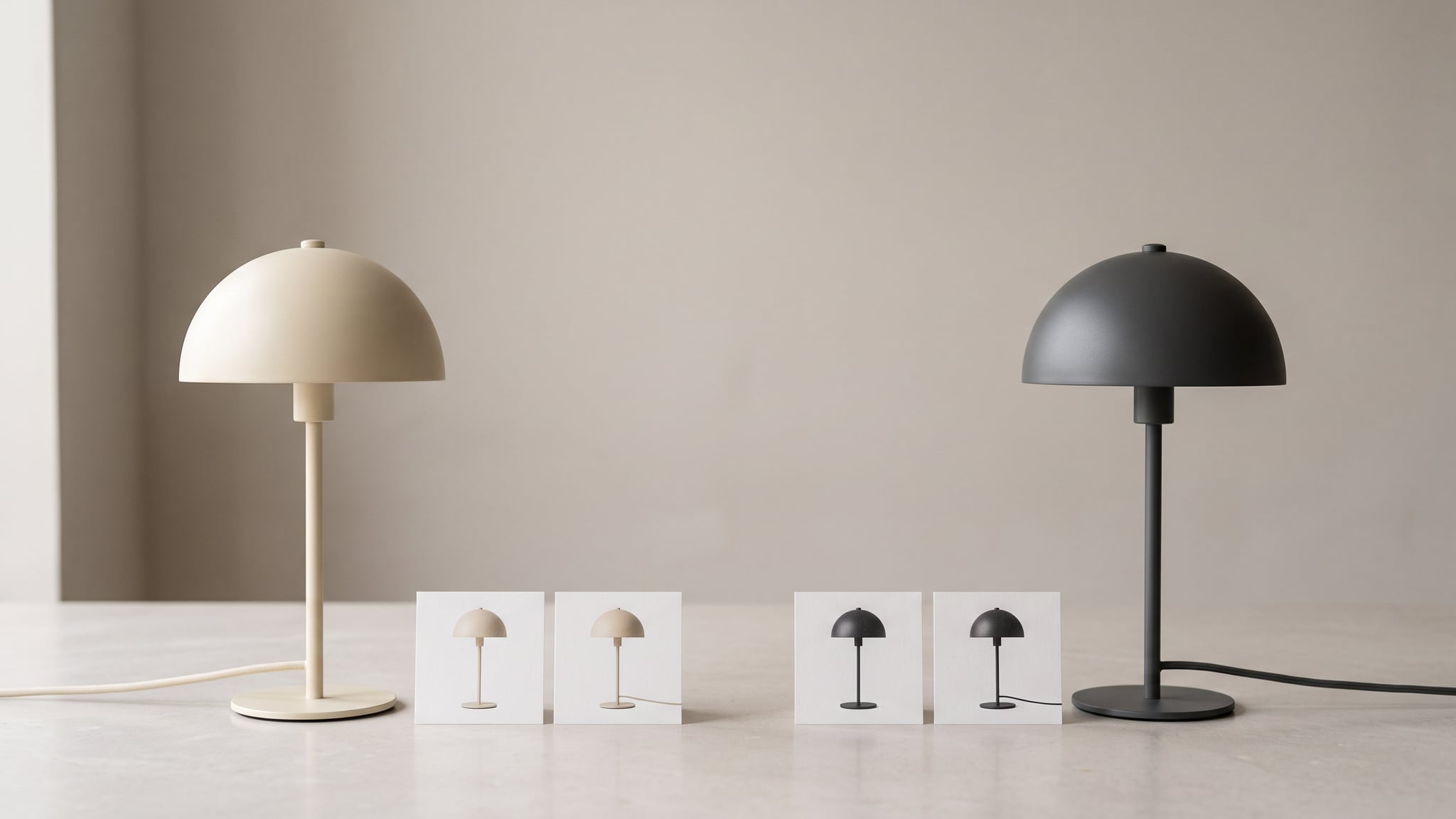
Your charcoal lamp photo looks correct in the media library. On the product page, however, selecting charcoal leaves a cream lamp on screen. Or the main image changes, but the next thumbnail shows another finish. Generating a better photograph will not necessarily fix either problem.
When Shopify shows the wrong variant image, first locate the mismatch: the image itself, its assignment, the gallery, the landing link, or the selected item. These are different failures with different remedies. A convincing AI-assisted scene can still be attached to the wrong product option, while an accurate studio photograph can fail in exactly the same way.
This guide provides a diagnosis sequence and a release checklist for home goods, electronics and packaged products. All product examples below are hypothetical. They illustrate checks you can perform; they are not results from an Oxava experiment or an audit of a particular Shopify store.
Cover: an AI-generated conceptual illustration of fictional lamp variants, not a real product listing or test result.
Separate a wrong image from a wrong gallery
Start with three questions, not a new prompt:
- Does the actual file depict the correct item?
- Is that file assigned to the intended variant?
- Does the storefront show the intended information when someone selects or opens that variant?
Shopify's variant-image documentation distinguishes a single assigned variant image from additional images in the product media gallery. Assigning a hero image is not the same operation as defining a complete, exclusive gallery for an option. Shopify also documents Combined Listings as an option for eligible Plus and enterprise merchants. Do not assume that feature is available on every plan.
For diagnosis, write down the behavior you actually need. “The charcoal hero appears when charcoal is selected” is one acceptance condition. “Only charcoal-specific photos appear, alongside shared information that applies to both finishes” is another. A mixed gallery is not automatically a malfunction if the store intentionally shows all variants, but it becomes a presentation problem if shoppers cannot tell which details belong to their selection.
This is a publishing check, not a replacement for creating truthful assets. Our product photography guide covers the broader workflow; here, the question is whether an approved image reaches the right shopper in the right state.
Build a small variant truth sheet before troubleshooting
Make a spreadsheet with one row per sellable combination, not merely one row per color. Two finishes with two plug types create four combinations even when some photographs can legitimately be shared.
Record these fields:
- SKU and variant ID: Stable identifiers from your store. Similar names are easy to confuse.
- Option values: Finish, capacity, plug or other relevant attributes. Defines the actual item being selected.
- Approved hero: Filename or media reference. Separates visual approval from assignment.
- Specific details: Images that apply only to this combination. Stops a different port or label slipping in.
- Shared media: Explicitly approved common images. Makes intentional reuse visible.
- Direct landing URL: The URL intended for that variant. Enables a fresh-session test.
- Result and evidence: Pass, fail or unresolved, with screenshot and date. Prevents a guess from becoming sign-off.
For a hypothetical lamp, cream and charcoal might share a dimensional drawing only if their dimensions are genuinely identical. A plug close-up cannot be shared across different plug versions. For a supplement, the same lifestyle background might be reusable, but a photograph showing a 60-capsule label does not become valid for a 120-capsule item because the bottles look similar.
Use the manufacturer's specifications and verified reference photographs as the truth source. A generated filename, prompt or attractive image is not product evidence. Our SKU image quality-control guide explains the upstream approval process; this sheet carries those decisions into the live storefront.
Follow this symptom-to-cause decision tree
Work through one representative failing variant before changing a whole catalog. Save the original settings and image mapping so you can reverse a mistaken fix.
The downloaded image is already wrong
Open the approved master and the uploaded file side by side. If charcoal has become black gloss, a speaker gained a charging port, or a package quantity changed, the failure happened before storefront assignment.
Return the asset to visual review. Fixing a selector cannot repair a misleading picture. Do not regenerate every variant: identify the smallest affected set, preserve correct images, and replace only the failed assets after approval.
If you prepare a replacement in Oxava's studio, compare it against the real item before uploading. A reference image or an exact color code can guide editing, but neither proves product fidelity. An unseen connector, label or rear surface should not be invented and treated as factual.
The file is correct, but its variant assignment is wrong
Check the complete option combination against your truth sheet. A bulk operation may have selected both finishes, or one capacity may have inherited another capacity's hero.
Use the store's variant image assignment controls to correct only the affected entries. Then revisit the public page. An admin thumbnail is evidence of configuration, not evidence that the live storefront behaves correctly.
For a hypothetical coffee listing, a whole-bean 250 g bag and a ground 250 g bag could share similar colors. Inspect the actual package wording, not just the brown background. The same principle applies to serum concentration and cable connector types.
The hero is right, but the remaining gallery is confusing
Now investigate gallery behavior rather than image generation. Inspect your theme's documented options and any installed gallery or swatch integration. Determine whether the intended behavior is selection, scrolling, filtering, or grouped media. Names and capabilities vary by theme and version.
Test shared media deliberately. Hiding every unassigned image might also hide the only useful size diagram. Conversely, keeping every detail shot visible can suggest that a feature belongs to all variants when it does not.
Do not immediately add another app or paste a generic script. First establish which component currently controls the gallery. If development is required, use a preview theme and describe the desired behavior in terms of exact combinations and exceptions. Keep descriptive alt text useful for people rather than turning it into unexplained machine-only grouping codes.
Clicking works, but a direct link opens the wrong option
Open the variant's intended URL in a fresh session without first clicking its selector. Shopify's developer guidance on variants documents deep links using a variant ID and requires the associated media, price and selector to reflect that selection.
Copy the actual link generated by your store; do not guess an ID from a SKU. If the URL opens cream while it was meant for charcoal, investigate link generation and theme handling. If a redirect removes the selection, record the original and final URL for the developer.
A correct result after manually clicking charcoal does not prove the incoming charcoal link works. Test both paths separately, especially when campaign links or product feeds send visitors directly to an option.
The page is correct, but the cart shows another item
Stop treating this as a cosmetic issue. Record the selected options, displayed image and resulting cart line. Do not complete a purchase to investigate an image problem.
Check the cart's variant description and quantity as well as its thumbnail. A generic cart image is not, by itself, proof that the underlying item is wrong. Equally, a matching thumbnail is not proof that the right variant was added. Escalate a mismatch between the chosen combination and cart details to whoever maintains the product form or relevant integration.
Check product cards, mobile galleries and rapid switching
A product detail page is only one entry point. Build a short test route through the surfaces your store actually uses: collection card, quick view, product page and cart. Skip features that are not present rather than marking them passed.
On mobile, select the second finish, swipe through the gallery, open zoom and close it. Confirm that each view still corresponds to the intended item. Then change a second option, such as capacity or plug type. A gallery can appear correct until that second selection changes the underlying combination.
Also switch between two variants before their images finish loading. The acceptance condition is simple: once loading settles, the selected option and displayed media agree. If a late-loading cream image overwrites the charcoal selection, capture a short recording with the exact sequence. That is a reproducible display-state problem, not a reason to produce another photograph.
Repeat the direct-link check in a separate session. If one browser still shows an earlier image while a fresh session does not, record both results before assuming a cache cause. Avoid repeatedly renaming files or changing several settings at once; that destroys the evidence needed to identify which fix worked.
Treat the shopping feed as a separate publishing surface
A correct storefront does not establish that a shopping feed contains the same asset. Inspect the actual item entry and the image URL it submits, rather than relying on the product page's appearance.
Google Merchant Center's image-link guidance identifies the main product image separately from additional images and requires the pictured item to match what is sold. Its landing-link guidance recommends opening the correct variant directly. These are complementary checks: a correct image with an incorrect landing selection still creates a confusing journey.
For each affected feed item, compare:
- The item identifier and distinguishing options.
- The exact submitted main image, opened independently.
- The landing URL and the variant selected on arrival.
- The page's visible product details and the resulting cart line.
If you discover a feed mismatch, preserve the current values and correct the responsible mapping or source. Verify the processed item again after the channel has refreshed; do not declare it fixed merely because the source spreadsheet changed. There is no universal refresh time that guarantees every downstream display has updated.
AI provenance is a separate gate. Keep source records and check applicable metadata requirements after export and upload. See our image export and metadata checklist for that workflow. Correct variant assignment does not prove metadata survived, and metadata does not prove that the pictured product is accurate.
Use a release checklist with explicit stop conditions
For each affected combination, record these checks as pass, fail, unresolved or not applicable:
- The actual uploaded image matches the verified item, including finish, label and visible hardware.
- The assigned hero belongs to the correct complete variant combination.
- Selecting an option produces the intended hero and gallery behavior.
- Shared media genuinely applies to every combination that displays it.
- The direct variant URL works without prior interaction.
- Mobile gallery, zoom and quick view behave correctly where supported.
- Rapid switching settles on media consistent with the final selection.
- Cart details identify the selected combination.
- The submitted feed image and landing link agree where that channel is used.
- Any image replacement has passed the separate export, accessibility and provenance checks.
Block release when a shopper could reasonably infer the wrong included item, quantity, connector or finish. An unresolved critical check is not a pass. For a lower-impact issue, such as an unnecessary but clearly labeled alternative view, record the limitation and decide whether to fix it before publishing.
This checklist is a suggested manual process, not an automatic Shopify scanner or a built-in Oxava validation feature.
Estimate the review work without inventing savings
Use a simple planning formula: number of combinations multiplied by the review minutes required per combination, plus time for failures and retesting. Separate full checks from a justified shared-media review; do not silently skip combinations to make the estimate smaller.
For example, suppose a hypothetical lamp range has two finishes and two plug types. Four combinations checked at five minutes each require 20 minutes. If reviewing shared media takes another ten minutes and one failure needs 15 minutes to diagnose and retest, the illustrative total is 45 minutes. These are planning assumptions, not measured timings or a promise of efficiency.
Record your actual time after the first batch. If most failures are assignment mistakes, improve the mapping process before buying more image production. If failures repeatedly involve inaccurate packaging or hardware, improve reference capture and asset approval instead. Our cost per approved image guide covers the upstream production calculation; storefront correction time belongs in your publishing workload too.
Frequently asked questions
Why does selecting a color change only one Shopify image?
The assigned variant image and a filtered multi-image gallery are different concepts. Check whether your theme or installed integration supports the gallery behavior you expect. Do not assume that uploading several photos automatically associates all of them with an option.
Should I regenerate AI product images when the wrong variant appears?
Only if the actual asset is inaccurate. If the file is correct but assigned or displayed incorrectly, fix that mapping or behavior first. Regenerating a correct photo adds work without addressing the cause.
Can one image serve several variants?
Yes, when it truthfully represents every combination using it. A shared overall view may be appropriate when only a nonvisible attribute differs, but quantity, dimensions, included accessories and visible labels still need clear, accurate representation elsewhere. Record the reason for sharing rather than assuming similar means identical.
Does a correct product page prove Google Shopping is correct?
No. Inspect the actual submitted image and landing link for the affected item, then check the processed result. A storefront change and a channel update are separate observations.
Publish the right image in the right state
An image is not finished when it looks convincing in a folder. It is ready when its product facts, variant assignment and shopper-facing behavior agree.
Start with one failing combination, trace it from file to cart, and change the layer that actually failed. If the asset needs improvement, prepare a revised product visual in Oxava, verify it against the real item, and run the same acceptance checks after uploading. Better imagery and correct publishing work together; neither replaces the other.
Oxava Team
Egemen Küpçü is the founder of Oxava, with 10+ years of hands-on experience in 3D and visual production. He writes about the craft of generating product, brand and campaign visuals with AI.
Related Articles
ALL POSTS
Subscribe to our newsletter
Be the first to hear about new techniques, model updates and ideas on AI generation.