
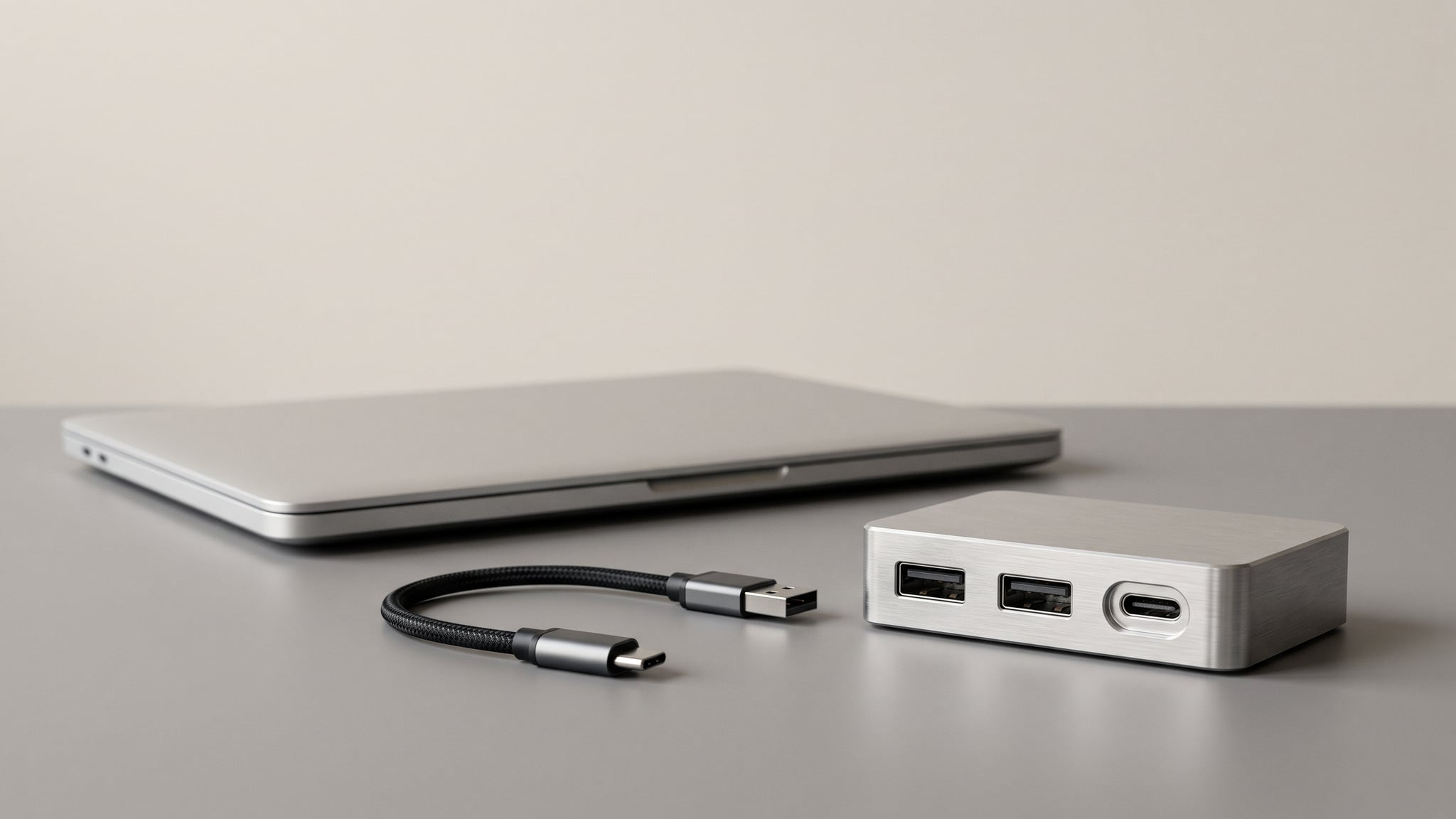
AI electronics product photography needs a clear boundary between what a connector looks like and what a device supports. A convincing desk scene can quietly promise that a hub drives a monitor, a cable charges a laptop, or an adapter works with a particular computer. Those promises need evidence before the image enters a product gallery.
This guide gives you a decision tree, a port-reference checklist, and a reusable record for approving each frame. The workflow is an editorial synthesis, not a compatibility certification or a report of product testing. All product examples below are hypothetical and untested.
The cover is a fictional AI-generated editorial illustration of a hub, laptop, and cable. It is not a photograph of a tested product or evidence of compatibility.
A connector photo establishes appearance, not capability
Separate two questions at the start: “Does this picture accurately show the item?” and “Does this pictured arrangement make a supported claim?” A port detail can answer the first while leaving the second unresolved.
USB-IF identifies USB Type-C as a connector type and distinguishes it from USB4, USB 3.2, and USB Power Delivery. The capabilities implemented in products can differ. Consequently, a familiar connector outline does not establish a particular data, display, or charging capability. See the official USB-IF language and packaging guidelines.
A manufacturer example makes the distinction concrete: Apple's adapter guidance distinguishes Mini DisplayPort from Thunderbolt and Thunderbolt 2 despite their matching connector shape, and directs readers to check compatibility for their specific equipment. That guidance concerns the products it covers; it is not a universal compatibility table.
For a seller, the practical consequence is to separate appearance approval from setup approval. A beautiful shell, readable label, and plausible cable route cannot replace the missing equipment information. Start with the broader AI product photography workflow, then apply the checks below specifically to connector-led gallery images.
Build a port map from the exact product
Before staging a connected scene, collect a sharp real photograph of every face that will appear. Include the model identifier and relevant revision in your production notes. A stock photo of a similar-looking unit should not become the reference for a different SKU.
Make a simple port map. Give each opening an internal label, such as left-face A or rear-face B, and record its physical position. Keep those labels in the production document; they do not need to appear on the customer image.
For each visible connection, record:
- The real source image and crop showing its shape and position.
- The neighboring openings, seams, buttons, and printed markings.
- The connector or cable end that will be depicted beside it.
- The documented role of the port for this exact model.
- Any missing detail that requires another photograph or a documentation check.
Use two separate fields for visible form and documented function. “Small oval opening on the left side” describes a photograph. “Power input only” describes a capability that needs a product-specific source. Combining them into one casual note makes assumptions harder to spot later.
If glare hides the opening, recapture it with more readable lighting. If the cable tip is blurred, take a dedicated detail photograph. Enlarging a generated reconstruction may produce convincing detail, but it does not recover the real contact arrangement. Keep uncertain surfaces out of close-up frames until you have a usable reference.
The purpose is not to create an engineering drawing. It is to give the reviewer enough trustworthy visual information to reject an altered opening, a moved label, or a cable entering the wrong side.
A decision tree for AI electronics product photography
Treat each proposed frame as a separate approval request. A product can be suitable for an appearance image while its connected setup remains unresolved.
1. Can you see the real hardware clearly?
If the planned frame reveals a port or connector face that your references do not show, pause that frame and recapture. Do not ask generation to fill in an unseen arrangement from a generic product description.
If the reference is clear, move to the claim question. Passing the geometry check is necessary; it is not the final approval.
2. What will a buyer infer from the arrangement?
Write one sentence describing the likely interpretation without relying on the caption. “This is the exterior of the hub” is an appearance claim. “This hub connects this laptop to an external display” is an operational claim.
A screen does not have to show a performance badge to imply operation. A cable visibly linking the product to an illuminated monitor can make the connection itself the message. Review the composition as someone seeing the image quickly on a product listing would see it.
3. Is the whole depicted setup supported?
For an operational scene, identify the host, the product, every intervening cable or adapter, and the destination device. Check documentation for the proposed configuration, including any stated requirements or limitations.
If one link remains unknown, hold the connected frame. Choose a clearly disconnected product composition, or obtain the missing evidence. Do not substitute a neighboring model's documentation simply because the outside looks identical.
4. Does the frame imply a measured result?
Multiple active displays, a charging-time graphic, or an on-screen transfer readout can extend the claim beyond basic connection. Define precisely what the image would communicate and require evidence appropriate to that claim.
An AI-generated screen or badge cannot establish a measurement. If you have only documentation for a limited setup, keep the scene within that setup. Adding another monitor for visual balance creates another claim to review.
5. Did the finished edit change the product?
Compare the candidate with its real references before publication. A supported arrangement still fails if the generated picture changes the port count or routes a cable through the casing.
Reject the affected frame, recapture it, or restore the real product pixels in an external editor and review the result again. A request to “preserve all ports” is an instruction to a model, not proof that the output obeyed it.
Once the references and permitted scene are settled, you can explore visual directions in Oxava Studio. If your selected workflow supports reference images, use those captures and inspect every result manually. Scene generation does not perform the compatibility review for you.
Review the entire connection chain
Draw the proposed arrangement as a plain sequence in your production notes:
Host → cable → hub or adapter → cable → destination
Add a power source or other required component when the documented setup calls for it. For each link, record the exact item and the role it performs. The point is to make a missing assumption visible before a polished composition hides it.
USB-IF's guidance also ties the available capabilities to the host, device, and appropriate cable. This supports checking the combination rather than approving a scene from the featured product alone. It does not certify any particular combination you intend to photograph.
An editorial review can use the following three statuses:
| Status | Evidence situation | Permitted next step |
|---|---|---|
| Appearance supported | Real references establish visible hardware; operation remains unknown | Prepare an accurate disconnected appearance frame |
| Setup supported | Exact-model documentation supports the depicted chain and its conditions | Prepare a bounded setup illustration, then inspect the output |
| Claim unresolved | A component, requirement, or claimed result lacks evidence | Hold that claim; research, recapture, or change the frame |
These are production statuses, not technical certifications. Keep the wording internal so a customer does not mistake “setup supported” for an independent laboratory finding.
Also review what sits just outside the crop. If a necessary adapter disappears from view, the remaining composition may suggest a direct connection. Either show enough of the arrangement to explain it honestly or use a different frame. A shorter caption cannot reliably repair an image built around the wrong connection.
Keep a frame, claim, and evidence record
Use the following original editorial template for each gallery slot. Short labeled blocks work well in a production document and avoid a spreadsheet with unreadably wide columns.
Frame identity
- Frame ID and intended gallery position:
- Exact SKU and relevant revision:
- Source photograph filenames:
- Visible ports, connectors, and cable route:
Buyer interpretation
- What a buyer is likely to conclude:
- Appearance, operational setup, or measured-performance claim:
- Caption and nearby listing text that affect that interpretation:
Evidence
- Manufacturer documentation URL, section, and date checked:
- Host requirements:
- Cable and adapter requirements:
- Destination device requirements:
- Supporting real observations, if actually collected:
- Unresolved item:
Decision
- Permitted scene:
- Publish, recapture, reframe, or hold:
- Reviewer and review date:
- Approved image filename:
Leave unperformed observations explicitly marked “not collected.” Do not fill an evidence field with an attractive generated image, and do not label a documentation check as a physical test.
Completed hypothetical example: the wrong port
Frame: F03, a fictional hub's connected desk image. The real reference shows a USB-C opening documented for power input only. The candidate image routes a monitor cable into that opening.
Buyer interpretation: The monitor can receive its picture through this port.
Evidence: In this hypothetical case, the hub manual identifies that opening as power input. The documentation does not support the depicted display connection.
Decision: Reject F03 as composed. Use a disconnected hub detail now. A revised setup through a documented video output needs its own complete-chain review before approval.
This is a useful failure analysis because the connector can look physically convincing while the frame's message is wrong. The correction changes the scene, not merely its caption.
Completed hypothetical example: an unidentified cable
Frame: F02, a fictional cable laid beside a laptop and display. The cable's exact model is unknown, and no capability document is available.
Buyer interpretation: If connected to the active display, the arrangement would imply video support.
Evidence: A sharp source photograph establishes the cable's exterior only. The operational capability is unresolved.
Decision: Approve only an accurate disconnected appearance composition after visual comparison. Hold the connected display scene until the exact cable and complete setup can be checked.
Unknown does not mean incapable. It means the production team lacks the basis to publish that particular implication. This distinction avoids turning an evidence gap into either a false positive or an unsupported negative claim.
Inspect details at full size and listing size
Review the image first at a size where the hardware can be inspected, then at the size buyers will actually encounter. The first view reveals distortions. The second reveals the overall claim.
Use this final checklist:
- Port count, spacing, and placement agree with the real reference.
- Connector tips and shells have not changed into another shape.
- Cables enter the intended openings rather than seams or blank casing.
- Cable routes remain visually traceable through the scene.
- Printed labels are faithful; invented symbols or certification marks are absent.
- Screens, indicators, and nearby captions do not add an unsupported capability.
- Required components have not disappeared in cropping or cleanup.
- The approved filename matches the reviewed frame record.
Do not approve a small but meaningful hardware error because it is barely visible on a phone. A buyer may enlarge the gallery image precisely to inspect that detail.
Background work deserves the same review. Follow the background removal and replacement guide for the surrounding scene, then return to the port map. Replacing a desk surface should not silently change the product resting on it.
Publish a small gallery with distinct jobs
A useful starting gallery has three jobs: identify the product, reveal its connections, and explain a supported context.
Use an accurate hero for identity. Use a sharp real-capture detail for the port face when buyers need to inspect it. Add a connected setup only when the frame record supports the depicted combination. There is no requirement to fill the third slot with an operational scene while its evidence is pending.
Keep adjacent purchase questions separate. If accessories appear, use the product bundle photography guide to make the included contents clear. If the next asset is a moving demonstration, apply the functional accuracy review for electronics video to actions and responses. Static connector approval does not approve a later video automatically.
Frequently Asked Questions
Can a photo tell me whether a cable supports a display?
A product photo alone should not be your basis for that claim. Identify the exact cable and check its documented capability against the other devices in the proposed setup. If that information is missing, keep display operation out of the scene.
Should every port close-up be AI-generated?
No. A sharp photograph of the actual port is a practical choice when small hardware details matter. You can use a different surrounding scene while keeping the real detail image as the gallery's reference for what buyers receive.
Can a disclaimer fix an unsupported connection image?
Reframe or replace the image when its central message is unsupported. A small disclaimer may be missed while the connected composition continues to communicate compatibility. Use captions to explain accurate imagery, not to excuse a contradictory setup.
Is manufacturer documentation the same as our own test?
No. Documentation can support a bounded statement about a specified configuration, but it does not mean your team physically tested it. Record the source and conditions, and describe any real test separately only when it actually happened.
Make the evidence decide the scene
For AI electronics product photography, decide what each frame is allowed to communicate before polishing the gallery. Keep an accurate appearance image when capability is unknown, and reserve connected scenes for combinations with supporting evidence. The frame record makes that decision reviewable when images are revised or reused.
Start your next visual direction in Oxava Studio with a real hardware reference and a clearly bounded scene. Approve the finished image only after the visible product and the implied connection both pass your review.
Oxava Team
Egemen Küpçü is the founder of Oxava, with 10+ years of hands-on experience in 3D and visual production. He writes about the craft of generating product, brand and campaign visuals with AI.
Related Articles
ALL POSTS


Subscribe to our newsletter
Be the first to hear about new techniques, model updates and ideas on AI generation.