
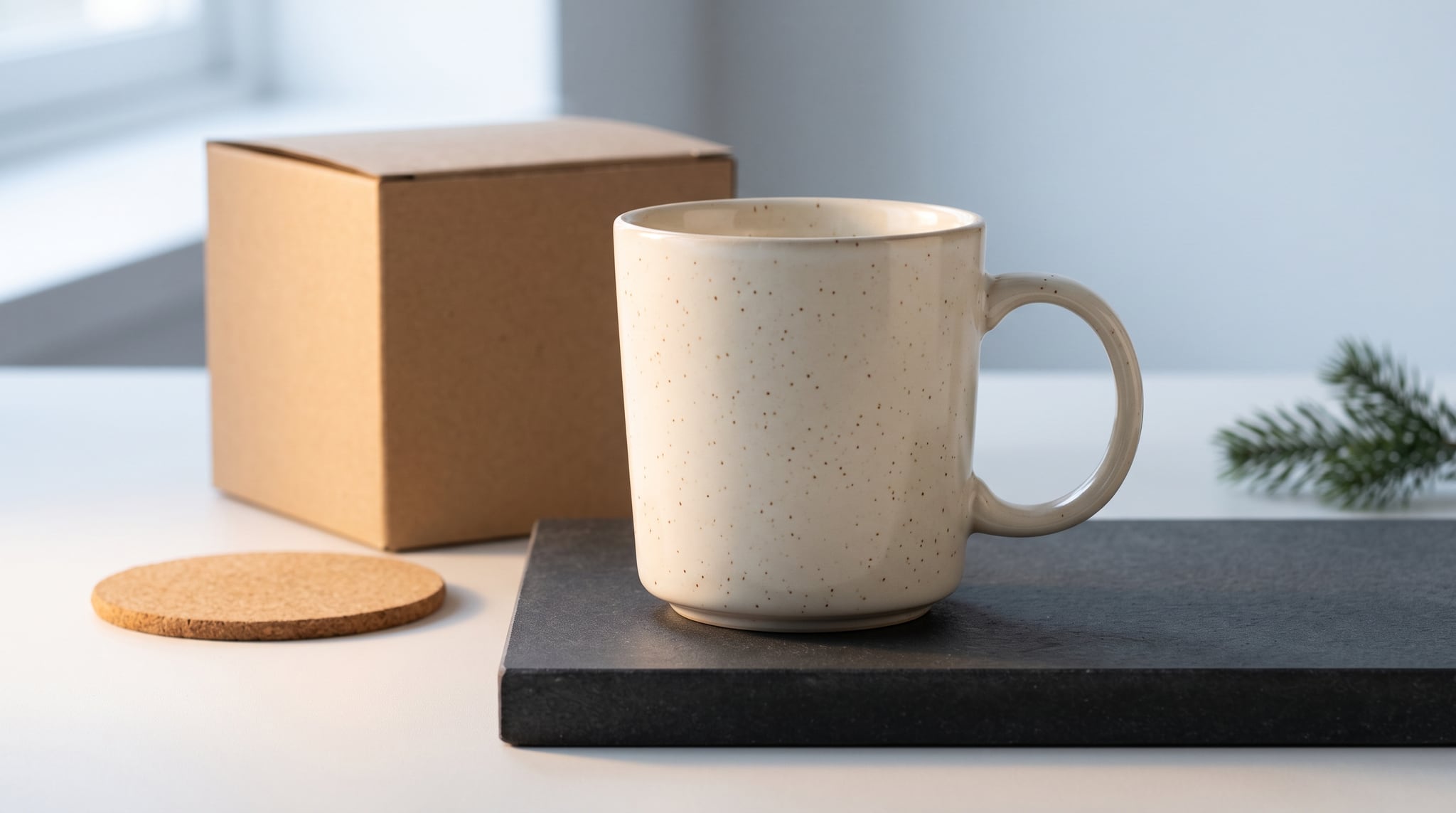
AI holiday product photography gives you a way to explore seasonal settings around real products: a restrained Black Friday hero, a warm gift-guide scene, or a fresh image for a New Year collection. The useful starting point is a clear photograph of what you sell, plus a decision about what each campaign image needs to communicate.
For planning purposes, Black Friday 2026 falls on November 27. Preparing ahead leaves room to check product accuracy, review offers, and adapt approved images before launch.
This guide follows a fictional ceramics shop selling a cream mug. You'll build four briefs from that product, separate decorative props from real bundle contents, and create an approval process you can reuse across the season. The prompts are starting points for experimentation; they are not tested outputs or guarantees of product fidelity.
Plan Your Holiday Images Around the Buying Question
Before choosing ribbons or backgrounds, write down the shopper's question. Someone comparing a Black Friday offer needs a recognizable product and a clear offer nearby. Someone choosing a gift needs help imagining the recipient enjoying it. A bundle shopper needs to understand exactly what arrives.
Shopify's holiday gift guide approaches gift selection through audience, budget, and product grouping. That is a useful merchandising foundation: choose what belongs in the campaign before deciding how to photograph it. Its advice also connects gift-guide promotion with stock and delivery planning. Use those connections when briefing images, so the product you feature and the promise beside it stay aligned.
Here is an example planning table for our ceramics shop. These are proposed creative decisions, rather than platform requirements.
| Campaign moment | Customer question | Image's job | Possible styling | Keep separate |
|---|---|---|---|---|
| Black Friday | Is this the mug I want? | Make the exact mug easy to recognize | Charcoal surface, controlled side light | Discount, dates, and terms in editable copy |
| Gift discovery | Would this suit someone I know? | Suggest a quiet morning ritual | Warm table, soft background light | Props that are not included |
| Actual gift bundle | What comes in the set? | Show every included component clearly | Mug, coaster, and real box | Decorative extras and alternate variants |
| Winter or New Year | Will this fit my home or routine? | Give the product a fresh seasonal context | Pale background, cool daylight | Holiday symbols irrelevant to your audience |
Choose one image per job for the first round. Approving four purposeful images is easier than sorting through dozens of attractive scenes without a clear use.
Also choose a small set of shared visual decisions: cream and charcoal colors, soft side lighting, and uncluttered surfaces. Our guide to AI image brand consistency explains how to turn those choices into a reusable brief. For this campaign, record them alongside the table so each seasonal variation still feels like your shop.
Prepare a Product Reference You Can Check Against
Your reference photograph is the standard against which every generated result will be reviewed. It should show the exact variant, with the handle, rim, base, surface finish, and any branding visible enough to inspect.
Shopify's product photography guidance recommends reducing distractions and making the product the central subject. It also explains how lighting choices can introduce unwanted reflections or color shifts. Apply those basics to your reference: a simple background and readable details give you a stronger basis for judging later edits.
For our fictional mug, write a short product record:
- Cream glaze with small brown speckles.
- Rounded handle attached at two points.
- Straight body with a slightly tapered base.
- Unprinted exterior; no decorative band or added lettering.
- One mug in the single-item listing.
Replace these details with observations from your own product. Keep the original photograph available beside the output throughout review. If you sell several similar colors, name the exact variant in the brief and file name.
A reference-based model can still alter geometry, surface texture, or labels. A request to preserve details expresses your intention; it does not prove the result is accurate. If the handle changes, reject the output even if its lighting is beautiful.
For a real bundle, photograph all included components together when possible. This gives you an explicit record of their number, appearance, and relative size. Avoid asking the model to invent a box you haven't ordered or a matching accessory you don't sell.
AI Holiday Product Photography: Four Campaign Briefs
You can start in Oxava's image studio with a model that supports reference images. Nano Banana 2 is one example if it is available to your account; model access can depend on your plan.
Select Add reference and upload a JPG or PNG of the product. Choose the Aspect ratio and Resolution offered by the selected model, paste your brief, and select Generate. Compare each result with the original before downloading an approved candidate.
The following prompts describe four different image jobs. Adapt the product descriptions to your reference rather than copying details that don't match your inventory.
1. A Restrained Black Friday Hero
A weak instruction such as “make a luxury Black Friday mug ad” leaves the model to guess the product, layout, and decoration. Specify what must stay fixed and where the later offer copy will sit.
Create a realistic campaign photograph using the attached cream ceramic mug as the product reference. Preserve its rounded handle, speckled glaze, rim thickness, body shape, and base proportions. Place one mug on a matte charcoal surface, toward the right side of a wide composition. Use soft directional light from the left, with enough fill to show the handle and cream glaze clearly. Leave a clean, quiet area on the left for copy that will be added separately. Keep existing labels unchanged, if any are visible in the reference. No added text, logos, discount badges, ribbons, extra mugs, or accessories. The entire mug must remain visible.
Review the dark edge of the handle first. If it disappears into the background, request a lighter background or gentler contrast. Add the approved offer and dates afterward in a separate design tool, where they remain editable.
2. A Warm Gift-Guide Scene
For gift discovery, change the setting while keeping the product recognizable. A quieter scene can suggest a recipient's routine without filling the frame with other things that appear to be for sale.
Use the attached cream ceramic mug as the exact product reference for a warm gift-guide photograph. Show one empty mug on a natural oak table near a softly lit window. Preserve the reference mug's speckled finish, handle shape, rim, and proportions. Use warm neutral light without turning the cream glaze yellow. Suggest a calm morning through the background lighting and a softly blurred curtain. Keep the foreground clear around the product. Existing labels unchanged; no added text or logos. No gift box, wrapping, spoon, food, second mug, or other accessory. Leave some open background above the mug for a separate page heading.
This version deliberately uses atmosphere instead of gift packaging. If your shop offers wrapping, make another image using the real packaging as a reference. Etsy's gifting checklist recommends a clear first product photo, useful contextual images, and showing gift wrapping or branded packaging when you offer it. The distinction matters: a styled photograph should not create expectations your shipment cannot meet.
3. A Real Gift Bundle
Suppose the ceramics shop genuinely sells a set containing one mug, one cork coaster, and one kraft gift box. Start with a reference photograph showing those actual pieces. If you only sell the mug, skip this brief.
Create a realistic seasonal campaign photograph of the exact three-component gift set in the attached reference: one cream speckled ceramic mug, one round cork coaster, and the actual kraft gift box. Preserve each component's shape, material, color, markings, and relative size. Arrange all three so every component is clearly visible, with the mug upright beside the box and the coaster in front. Use a plain warm-gray surface and soft side light. Keep existing labels unchanged. No added text, logos, tissue paper, ribbon, cards, additional products, or duplicated components. Do not redesign the packaging. Leave a small amount of breathing room around the set.
Count the pieces before assessing the mood. Then check that the box construction and coaster thickness still match your reference. A generated ribbon might look harmless, but placed around the box it can imply a packaging service. Remove it if that is not part of the offer.
4. A Neutral Winter or New Year Scene
A winter setting can carry the same product beyond a single promotional weekend. Choose it when the season fits your audience; a snowy treatment may be inappropriate for customers enjoying summer.
Create a clean seasonal lifestyle photograph using the attached cream speckled mug as the product reference. Preserve the mug's geometry, glaze pattern, color, and proportions. Place it on a pale stone tabletop beside a softly blurred window. Use cool morning daylight balanced so the mug stays cream, with a quiet ivory and muted gray palette. Keep the scene minimal and the full product visible. Suggest a fresh morning through light and space. Existing labels unchanged; no added text, logos, dates, confetti, snow on the product, holiday ornaments, extra mugs, or accessories.
Compare this image with the gift-guide version side by side. The lighting can feel different while the glaze color and product proportions remain consistent. If the mug looks like a different variant, the scene needs revision.
Match the Image to Its Channel
A campaign image needs a destination before you finalize its composition. Keep an approved version without added promotional text, then make the specific layouts your channels require.
Campaign landing page: Test the hero in the actual page layout. Check both desktop and mobile crops, especially whether the handle remains visible and the heading overlaps the product. Keep the offer in page text where practical.
Social media: Preview the image at phone size. A faint speckle pattern may disappear, but the silhouette should remain clear. If you need several shapes, our guide to adapting one campaign image to multiple formats covers that separate production step.
Email: Build around the email template's content width and surrounding copy. Put essential offer information in readable email text as well as any designed graphic. See our AI images for email marketing guide for a fuller email workflow.
Google Merchant Center main image: Treat this as a separate deliverable. Google's image_link requirements call for an accurate product view with minimal or no staging and prohibit promotional overlays such as prices and calls to action. They also require generative-AI source metadata and preservation of relevant embedded tags. A visually approved campaign image is therefore not automatically suitable for a Merchant feed. Check the final file, including metadata, against the current requirements; do not assume any generation or export workflow has handled this for you.
After approval, download the image, add any channel-specific copy in your design tool, and upload it to your store or marketing platform. Scheduling and publishing happen in those tools.
Review, Name, and Approve Before Launch
Give each candidate two reviews: one for the product and one for the campaign. This makes it harder for attractive styling to distract from an inaccurate item.
During the product review, compare silhouette, color, texture, branding, component count, and relative scale with the reference. Inspect at full size, then at the size shoppers will actually see. Look inside handle openings and along rims, where small distortions can be easy to miss.
During the campaign review, confirm that the image belongs to the correct offer, destination, and variant. Check that packaging and accessories do not suggest something extra is included. Read every added date and offer against the approved campaign brief.
Save an approval note beside the file: reference used, product variant, intended channel, and reviewer. A practical naming pattern is:
cream-mug_black-friday_web-hero_16x9_v03_approved.jpg
Use the actual file extension and chosen ratio. Keep working versions separate from approved exports, and retain the original download alongside later design exports. This makes it easier to trace where a visual or metadata change happened.
For a manageable preparation schedule, work backward from your own launch date:
- Six weeks before: Confirm featured products, actual bundles, packaging, and source photographs.
- Four weeks before: Explore the four image briefs and approve the creative direction.
- Two weeks before: Prepare channel layouts and complete product and copy reviews.
- Final week: Preview the assets in their destinations, verify links and offers, and upload approved files.
These are suggested planning intervals, not a universal calendar. A small campaign may take less time; a team with several reviewers may need more. Keep a plain, accurate product photograph ready as a fallback if a generated scene cannot pass review.
Frequently Asked Questions
Can I use AI to create holiday product photos?
Yes, a reference-supported image model can help create seasonal settings around a product photograph. Check every output against the real item before using it commercially, because reference input does not guarantee unchanged product details.
When should I prepare Black Friday product images?
Work backward from the date your campaign goes live, including time for review and channel layouts. Black Friday is November 27 in 2026, but your gift guide or early campaign may launch before that date.
Can I show a gift box if it is not included?
A gift box can make the offer ambiguous, especially when positioned as part of a set. Prefer the real packaging you provide, or use a scene without packaging and explain available wrapping options separately.
Should my campaign banner also be my main shopping-feed image?
Prepare them as separate deliverables. Campaign banners often contain styling and offer copy that conflict with main-image requirements, and AI-generated files may also need specific source metadata.
Build Your First Holiday Image Set
Start your AI holiday product photography with one product, one trustworthy reference, and one clear job for each image. Approve the product details before you expand into more layouts or add promotional copy.
Open Oxava's studio, choose a reference-supported model available to your account, and try the brief that matches your next campaign. Keep the strongest accurate result, review it in its destination, and build the rest of your holiday collection from those approved decisions.
Oxava Team
Egemen Küpçü is the founder of Oxava, with 10+ years of hands-on experience in 3D and visual production. He writes about the craft of generating product, brand and campaign visuals with AI.
Related Articles
ALL POSTS
Subscribe to our newsletter
Be the first to hear about new techniques, model updates and ideas on AI generation.